
Table of Contents
When you wish to provide the user with a set of choices that is larger than, say, three or four choices, it is often better to avoid check boxes or radio buttons, because they take up too much space. A better solution is a list box, or a combo box.
List Boxes
Here’s an example of how to use a list box (i.e., a JList):
package swingExamples;

import java.awt.BorderLayout;
import java.awt.Color;
import java.awt.Container;
import java.awt.Font;

import javax.swing.JFrame;
import javax.swing.JList;
import javax.swing.JLabel;
import javax.swing.JPanel;
import javax.swing.ListSelectionModel;

import javax.swing.event.ListSelectionEvent;
import javax.swing.event.ListSelectionListener;

class ListsPanel extends JPanel
{
  public ListsPanel()
  {
    setLayout(new BorderLayout());
    add(new TextPanel(), BorderLayout.NORTH);
    add(new InputPanel(), BorderLayout.CENTER);
  }

  void setTextFont()
  {
    m_text.setFont(new Font(m_name, m_style, m_size));
  }

  /////// Private data /////
  private String m_name = "SanSerif"; // Current font name
  private int m_style = Font.PLAIN; // Current font style
  private int m_size = 14; // Current font point size

  private JLabel m_text =
      new JLabel(
      "The quick brown fox jumps over the lazy dog");

  /////// Inner classes /////
  class TextPanel extends JPanel
  {
    public TextPanel()
    {
      setBackground(Color.white);
      add(m_text);
      setTextFont();
    }
  }

  class InputPanel extends JPanel
      implements ListSelectionListener
  {
    public InputPanel()
    {
      m_fontNameList = new JList(m_fontNames);
      m_fontNameList.setSelectionMode(
          ListSelectionModel.SINGLE_SELECTION);
      m_fontNameList.addListSelectionListener(this);
      add(m_fontNameList);
      m_fontStyleList = new JList(m_fontStyles);
      m_fontStyleList.setSelectionMode(
          ListSelectionModel.MULTIPLE_INTERVAL_SELECTION);
      m_fontStyleList.addListSelectionListener(this);
      add(m_fontStyleList);
      m_fontSizeList = new JList(m_fontSizes);
      m_fontSizeList.setSelectionMode(
          ListSelectionModel.SINGLE_SELECTION);
      m_fontSizeList.addListSelectionListener(this);
      add(m_fontSizeList);
    }

    public void valueChanged(ListSelectionEvent ev)
    {
      JList source = (JList) ev.getSource();
      if (source == m_fontNameList)
      {
        setFontName();
      }
      else if (source == m_fontStyleList)
      {
        setFontStyle();
      }
      else if (source == m_fontSizeList)
      {
        setFontSize();
      }
      setTextFont();
    }

    private void setFontName()
    {
      String name =
          (String) m_fontNameList.getSelectedValue();
      m_name = name;
    }

    private void setFontStyle()
    {
      Object[] styles =
          m_fontStyleList.getSelectedValues();
      int stylesSet = 0;
      for (int i = 0; i < styles.length; i++)
      {
        String style = (String) styles[i];
        if (style.equals("Plain"))
        {
          stylesSet |= Font.PLAIN;
        }
        else if (style.equals("Bold"))
        {
          stylesSet |= Font.BOLD;
        }
        else if (style.equals("Italic"))
        {
          stylesSet |= Font.ITALIC;
        }
      }
      m_style = stylesSet;
    }

    private void setFontSize()
    {
      String size =
          (String) m_fontSizeList.getSelectedValue();
      m_size = Integer.parseInt(size);
    }

    ///// Private data /////
    private JList m_fontNameList;  // Font names
    private JList m_fontStyleList; // Font styles
    private JList m_fontSizeList;  // Font sizes
  }

  private static final String[] m_fontNames =
  {
    "Serif", "SanSerif", "Monospaced",
    "Dialog", "DialogInput"
  };
  private static final String[] m_fontStyles =
  {
    "Plain", "Bold", "Italic"
  };
  private static final String[] m_fontSizes =
  {
    "6", "8", "10", "12", "14",
    "16", "18", "20", "22", "24"
  };
}

class ListsFrame extends JFrame
{
  public ListsFrame()
  {
    setTitle("Lists");
    setSize(400, 300);
    setDefaultCloseOperation(EXIT_ON_CLOSE);
    Container contentPane = getContentPane();
    contentPane.add( new ListsPanel() );
  }
}

public class Lists
{
  public static void main(String[] args)
  {
    ListsFrame frame = new ListsFrame();
    frame.setVisible(true);
  }
}
which produces:
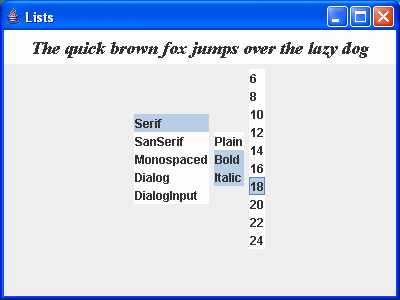
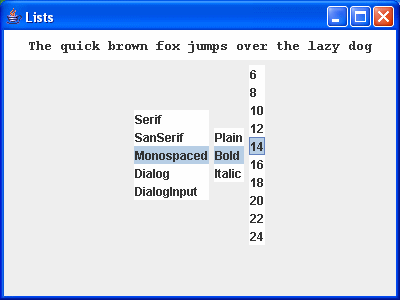
Note that the font styles list box (the one with “Plain”, “Bold” and “Italic”) allows multiple selections, while the other two list boxes only allow single selection.
Scrolling Lists
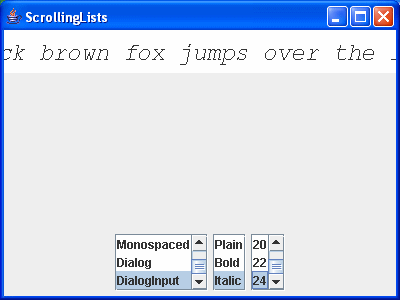
As you can see, the list boxes don’t look all that great, because, by default, they will not scroll. They also don’t have any border.
You can provide both scrolling capabilities and a border, by using a JScrollPane to enclose each list box:
package swingExamples;

import java.awt.BorderLayout;
import java.awt.Color;
import java.awt.Container;
import java.awt.Font;

import javax.swing.JFrame;
import javax.swing.JList;
import javax.swing.JLabel;
import javax.swing.JPanel;
import javax.swing.JScrollPane;
import javax.swing.ListSelectionModel;

import javax.swing.event.ListSelectionEvent;
import javax.swing.event.ListSelectionListener;

class ScrollingListsPanel extends JPanel
{
  public ScrollingListsPanel()
  {
    setLayout(new BorderLayout());
    add(new TextPanel(), BorderLayout.NORTH);
    add(new InputPanel(), BorderLayout.SOUTH);
  }

  void setTextFont()
  {
    m_text.setFont(new Font(m_name, m_style, m_size));
  }

  /////// Private data /////
  private String m_name = "SanSerif"; // Current font name
  private int m_style = Font.PLAIN; // Current font style
  private int m_size = 14; // Current font point size

  private JLabel m_text =
      new JLabel(
      "The quick brown fox jumps over the lazy dog");

  /////// Inner classes /////
  class TextPanel extends JPanel
  {
    public TextPanel()
    {
      setBackground(Color.white);
      add(m_text);
      setTextFont();
    }
  }

  class InputPanel extends JPanel
      implements ListSelectionListener
  {
    public InputPanel()
    {
      m_fontNameList = new JList(m_fontNames);
      m_fontNameList.setSelectionMode(
          ListSelectionModel.SINGLE_SELECTION);
      m_fontNameList.setVisibleRowCount(3);
      m_fontNameList.addListSelectionListener(this);
      add(new JScrollPane(m_fontNameList));
      m_fontStyleList = new JList(m_fontStyles);
      m_fontStyleList.setSelectionMode(
          ListSelectionModel.MULTIPLE_INTERVAL_SELECTION);
      m_fontStyleList.setVisibleRowCount(3);
      m_fontStyleList.addListSelectionListener(this);
      add(new JScrollPane(m_fontStyleList));
      m_fontSizeList = new JList(m_fontSizes);
      m_fontSizeList.setSelectionMode(
          ListSelectionModel.SINGLE_SELECTION);
      m_fontSizeList.setVisibleRowCount(3);
      m_fontSizeList.addListSelectionListener(this);
      add(new JScrollPane(m_fontSizeList));
    }

    public void valueChanged(ListSelectionEvent ev)
    {
      JList source = (JList) ev.getSource();
      if (source == m_fontNameList)
      {
        setFontName();
      }
      else if (source == m_fontStyleList)
      {
        setFontStyle();
      }
      else if (source == m_fontSizeList)
      {
        setFontSize();
      }
      setTextFont();
    }

    private void setFontName()
    {
      String name =
          (String) m_fontNameList.getSelectedValue();
      m_name = name;
    }

    private void setFontStyle()
    {
      Object[] styles =
          m_fontStyleList.getSelectedValues();
      int stylesSet = 0;
      for (int i = 0; i < styles.length; i++)
      {
        String style = (String) styles[i];
        if (style.equals("Plain"))
        {
          stylesSet |= Font.PLAIN;
        }
        else if (style.equals("Bold"))
        {
          stylesSet |= Font.BOLD;
        }
        else if (style.equals("Italic"))
        {
          stylesSet |= Font.ITALIC;
        }
      }
      m_style = stylesSet;
    }

    private void setFontSize()
    {
      String size =
          (String) m_fontSizeList.getSelectedValue();
      m_size = Integer.parseInt(size);
    }

    ///// Private data /////
    private JList m_fontNameList; // Font names
    private JList m_fontStyleList; // Font styles
    private JList m_fontSizeList; // Font sizes
  }

  private static final String[] m_fontNames =
  {
    "Serif", "SanSerif", "Monospaced",
    "Dialog", "DialogInput"
  };
  private static final String[] m_fontStyles =
  {
    "Plain", "Bold", "Italic"
  };
  private static final String[] m_fontSizes =
  {
    "6", "8", "10", "12", "14",
    "16", "18", "20", "22", "24"
  };
}

class ScrollingListsFrame extends JFrame
{
  public ScrollingListsFrame()
  {
    setTitle("ScrollingLists");
    setSize(400, 300);
    setDefaultCloseOperation(EXIT_ON_CLOSE);
    Container contentPane = getContentPane();
    contentPane.add( new ScrollingListsPanel() );
  }
}

public class ScrollingLists
{
  public static void main(String[] args)
  {
    ScrollingListsFrame frame = new ScrollingListsFrame();
    frame.setVisible(true);
  }
}
By doing three things:
- Adding scroll panes for each of the list boxes
- Restricting the number of visible rows for each list box
- Moving the list boxes from the
BorderLayout's CENTER to its SOUTH
we make things look a little more reasonable:
Combo Boxes
Combo boxes (JComboBox) are similar to list boxes (JList), except:
- Combo boxes take up less vertical space
- Combo boxes can be editable — that is, they can present a set of choices, and in addition allow the user to enter a choice not listed.
- List boxes support multiple selections, and delegate selection responsibilities to an object that implements the interface
ListSelectionModel, while combo boxes only support single selection, and selection is handled by the combo box models. - Combo boxes support key selection, while list boxes do not.
- List boxes do not provide any methods for directly adding, inserting, or removing items directly to/from a list box. You must modify the list model to accomplish these actions.
- Items can be directly added to and removed from a combo box.
Here’s what happens if we take the first List Box example above, and replace two of its JLists with JComboBoxes:
package swingExamples;

import java.awt.BorderLayout;
import java.awt.Color;
import java.awt.Container;
import java.awt.Font;

import java.awt.event.ActionEvent;
import java.awt.event.ActionListener;

import javax.swing.JComboBox;
import javax.swing.JFrame;
import javax.swing.JLabel;
import javax.swing.JList;
import javax.swing.JPanel;
import javax.swing.ListSelectionModel;

import javax.swing.event.ListSelectionEvent;
import javax.swing.event.ListSelectionListener;

class ComboBoxesPanel extends JPanel
{
  public ComboBoxesPanel()
  {
    setLayout(new BorderLayout());
    add(new TextPanel(), BorderLayout.NORTH);
    add(new InputPanel(), BorderLayout.CENTER);
  }

  void setTextFont()
  {
    m_text.setFont(new Font(m_name, m_style, m_size));
    // Note: No repaint() necessary here, in this case.
  }

  /////// Private data /////
  private String m_name = "SanSerif"; // Current font name
  private int m_style = Font.PLAIN; // Current font style
  private int m_size = 14; // Current font point size

  private JLabel m_text =
      new JLabel(
      "The quick brown fox jumps over the lazy dog");

  /////// Inner classes /////
  class TextPanel extends JPanel
  {
    public TextPanel()
    {
      setBackground(Color.white);
      add(m_text);
      setTextFont();
    }
  }

  class InputPanel extends JPanel
      implements ActionListener, ListSelectionListener
  {
    public InputPanel()
    {
      m_fontNameList = new JComboBox(m_fontNames);
      m_fontNameList.addActionListener(this);
      add(m_fontNameList);
      m_fontStyleList = new JList(m_fontStyles);
      m_fontStyleList.setSelectionMode(
          ListSelectionModel.MULTIPLE_INTERVAL_SELECTION);
      m_fontStyleList.addListSelectionListener(this);
      add(m_fontStyleList);
      m_fontSizeList = new JComboBox(m_fontSizes);
      m_fontSizeList.setEditable(true);
      m_fontSizeList.addActionListener(this);
      add(m_fontSizeList);
    }

    public void actionPerformed(ActionEvent ev)
    {
      JComboBox source = (JComboBox) ev.getSource();
      if (source == m_fontNameList)
      {
        setFontName();
      }
      else if (source == m_fontSizeList)
      {
        setFontSize();
      }
      setTextFont();
    }

    public void valueChanged(ListSelectionEvent ev)
    {
      JList source = (JList) ev.getSource();
      if (source == m_fontStyleList)
      {
        setFontStyle();
      }
      setTextFont();
    }

    private void setFontName()
    {
      String name =
          (String) m_fontNameList.getSelectedItem();
      m_name = name;
    }

    private void setFontStyle()
    {
      Object[] styles =
          m_fontStyleList.getSelectedValues();
      int stylesSet = 0;
      for (int i = 0; i < styles.length; i++)
      {
        String style = (String) styles[i];
        if (style.equals("Plain"))
        {
          stylesSet |= Font.PLAIN;
        }
        else if (style.equals("Bold"))
        {
          stylesSet |= Font.BOLD;
        }
        else if (style.equals("Italic"))
        {
          stylesSet |= Font.ITALIC;
        }
      }
      m_style = stylesSet;
    }

    private void setFontSize()
    {
      String size =
          (String) m_fontSizeList.getSelectedItem();
      try
      {
        m_size = Integer.parseInt(size);
      }
      catch (NumberFormatException ex)
      {
        // Since the combo box is editable, we need to catch
        // any invalid numbers, and then do nothing
      }
    }

    ///// Private data /////
    private JComboBox m_fontNameList; // Font names
    private JList m_fontStyleList;    // Font styles
    private JComboBox m_fontSizeList; // Font sizes
  }

  private static final String[] m_fontNames =
  {
    "Serif", "SanSerif", "Monospaced",
    "Dialog", "DialogInput"
  };
  private static final String[] m_fontStyles =
  {
    "Plain", "Bold", "Italic"
  };
  private static final String[] m_fontSizes =
  {
    "6", "8", "10", "12", "14",
    "16", "18", "20", "22", "24"
  };
}

class ComboBoxesFrame extends JFrame
{
  public ComboBoxesFrame()
  {
    setTitle("ComboBoxes");
    setSize(400, 300);
    setDefaultCloseOperation(EXIT_ON_CLOSE);
    Container contentPane = getContentPane();
    contentPane.add( new ComboBoxesPanel() );
  }
}

public class ComboBoxes
{
  public static void main(String[] args)
  {
    ComboBoxesFrame frame = new ComboBoxesFrame();
    frame.setVisible(true);
  }
}
which produces the following:

Note the following:
- We can’t replace the style list box with a combo box, because we need multiple selection support.
- The combo box for the font name is not editable; we only support the set of names listed.
- The combo box for the font size is editable, because the user may wish to choose a size other than the ones supplied.
List Models
One problem with simple JLists is that, surprisingly, they have no support for dynamically adding or removing items from the list. If you want to provide this kind of functionality, you must use a ListModel.
Interface ListModel
The JList class is implemented using a Model-View-Controller architecture. The model for a JList stores the data for the display, and must implement the javax.swing.ListModel interface, which consists of the following methods:
| Method | Description |
|---|---|
public void addListDataListener( ListDataListener l) | Adds a listener to the list that’s notified each time a change to the data model occurs. |
public Object getElementAt(int index) | Returns the value at the specified index. |
public int getSize() | Returns the length of the list. |
public void removeListDataListener( ListDataListener l) | Removes a listener from the list that’s notified each time a change to the data model occurs. |
The ListDataListener interface must be implemented by any class that wishes to receive indications of changes to the data in the ListModel. The other two methods clearly allow one to determine the number of items in the list, and to obtain the element at a particular index in the list. Notice that there is still no way to add or remove items using a pure list model.
Class AbstractListModel
The abstract class AbstractListModel implements the ListModel interface, but only implements support for the ListDataListener methods. It is the superclass for a number of subclasses, and provides support for firing ListDataEvents.
Class DefaultListModel
The concrete class DefaultListModel extends AbstractListModel, and adds support for adding and removing items from the list model. It provides a large number of methods, loosely basing many of them on the Vector class. The most immediately relevant methods are:
| Method | Description |
|---|---|
public void addElement(Object obj) | Adds the specified component to the end of this list. |
public Object get(int index) | Returns the element at the specified position in this list. |
public int getSize() | Returns the number of components in this list. |
public Object remove(int index) | Removes the element at the specified position in this list. Returns the element that was removed from the list. |
public void clear() | Removes all of the elements from this list. The list will be empty after this call returns (unless it throws an exception). |
List Selections
Not only does JList delegate responsibility for data management to a list model, it also delegates responsibility for tracking of selected items to a list selection model — specifically, a class that implements the ListSelectionModel interface.
List selection models provide support for three selection modes:
- Single selection mode — allows only a single item in the list to be selected at any given time.
- Single interval selection mode — allows multiple selections, but the selections must be contiguous.
- Multiple interval selection mode — allows multiple contiguous intervals of selected items.
The default selection mode for JList is multiple interval selection.
Example of List Model and List Selection
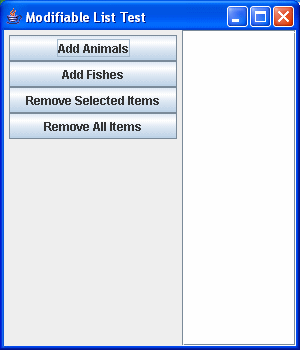
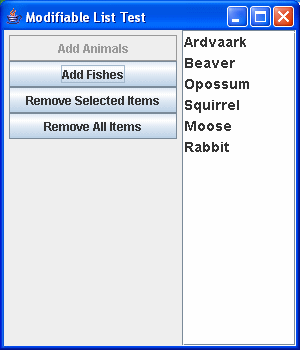
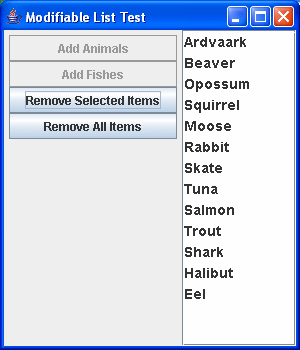
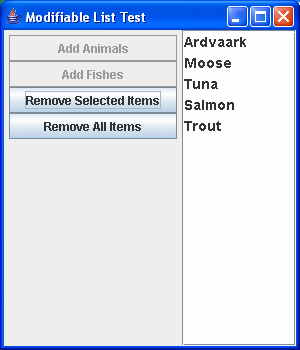
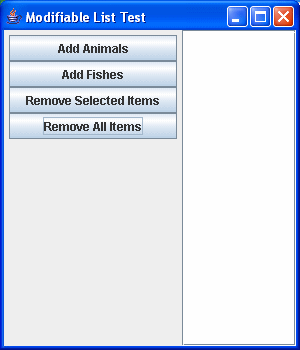
Here is an example of the use of a ListModel to add to and remove items from a list model for a list. It uses an instance of DefaultListModel as the model for a single JList.
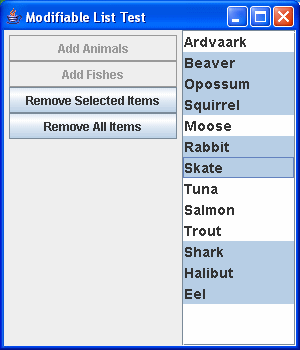
In addition, it provides a simple example of how to use list selection.
Here’s the code:
package swingExamples;

import java.awt.BorderLayout;
import java.awt.Container;
import java.awt.Font;
import java.awt.GridLayout;

import java.awt.event.ActionEvent;
import java.awt.event.ActionListener;

import javax.swing.DefaultListModel;
import javax.swing.JButton;
import javax.swing.JFrame;
import javax.swing.JList;
import javax.swing.JPanel;
import javax.swing.JScrollPane;

public class ModifiableListTest extends JFrame
{
  public ModifiableListTest()
  {
    setTitle("Modifiable List Test");
    setSize(300, 350);
    setDefaultCloseOperation(EXIT_ON_CLOSE);

    m_list.setFont(new Font("SansSerif", Font.BOLD, 14));

    Container contentPane = getContentPane();
    JPanel outerPane = new JPanel();
    outerPane.add(new ControlPanel());
    contentPane.add(outerPane, BorderLayout.WEST);
    contentPane.add(
        new JScrollPane(m_list), BorderLayout.CENTER);
  }

  private void addAnimals()
  {
    DefaultListModel model =
        (DefaultListModel) m_list.getModel();
    for (int i = 0; i < m_animals.length; i++)
    {
      model.addElement(m_animals[i]);
    }
  }

  private void addFishes()
  {
    DefaultListModel model =
        (DefaultListModel) m_list.getModel();
    for (int i = 0; i < m_fishes.length; i++)
    {
      model.addElement(m_fishes[i]);
    }
  }

  private int removeSelectedItems()
  {
    DefaultListModel model =
        (DefaultListModel) m_list.getModel();
    int[] selectedItems = m_list.getSelectedIndices();
    for (int i = 0; i < selectedItems.length; i++)
    {
      model.removeElementAt(selectedItems[i] - i);
    }
    // Return count of remaining elements
    return model.getSize();
  }

  private void removeAllItems()
  {
    DefaultListModel model =
        (DefaultListModel) m_list.getModel();
    model.removeAllElements();
  }

  // Private data for ModifiableListTest class
  private JList m_list = new JList( new DefaultListModel() );

  private static final String[] m_animals =
  {
    "Ardvaark", "Beaver", "Opossum",
    "Squirrel", "Moose", "Rabbit"
  };

  private static final String[] m_fishes =
  {
    "Skate", "Tuna", "Salmon", "Trout",
    "Shark", "Halibut", "Eel"
  };

  ////// Inner classes ///////

  private class ControlPanel extends JPanel
      implements ActionListener
  {
    public ControlPanel()
    {
      setLayout( new GridLayout(4, 1) );
                          // 4 rows, 1 column
      m_addAnimalsButton.addActionListener(this);
      add(m_addAnimalsButton);
      m_addFishesButton.addActionListener(this);
      add(m_addFishesButton);
      m_removeSelected.addActionListener(this);
      add(m_removeSelected);
      m_removeAll.addActionListener(this);
      add(m_removeAll);
    }

    public void actionPerformed(ActionEvent e)
    {
      JButton button = (JButton) e.getSource();
      if (button == m_addAnimalsButton)
      {
        m_addAnimalsButton.setEnabled(false);
                    // We can only add them once
        addAnimals();
      }
      else if (button == m_addFishesButton)
      {
        m_addFishesButton.setEnabled(false);
                    // We can only add them once
        addFishes();
      }
      else if (button == m_removeSelected)
      {
        int remaining = removeSelectedItems();
        if (remaining == 0)
        {
          m_addAnimalsButton.setEnabled(true);
                                  // Reenable
          m_addFishesButton.setEnabled(true);
                                  // Reenable
        }
      }
      else if (button == m_removeAll)
      {
        removeAllItems();
        m_addAnimalsButton.setEnabled(true);
                                  // Reenable
        m_addFishesButton.setEnabled(true);
                                  // Reenable
      }
    }

    // Private data for ControlPanel inner class
    private JButton m_addAnimalsButton =
                  new JButton("Add Animals");
    private JButton m_addFishesButton =
                  new JButton("Add Fishes");
    private JButton m_removeSelected =
                  new JButton("Remove Selected Items");
    private JButton m_removeAll =
                  new JButton("Remove All Items");
  }

  /**
   * Main entry point for program
   */
  public static void main(String[] args)
  {
    ModifiableListTest frame = new ModifiableListTest();
    frame.setVisible(true);
  }
}
When run, this produces a frame that looks like this:
List Renderers
Here’s an example of how you might wish to use a list:
package swingExamples;

import java.awt.BorderLayout;
import java.awt.Color;

import javax.swing.JFrame;
import javax.swing.JList;
import javax.swing.JPanel;
import javax.swing.JScrollPane;

import javax.swing.event.ListSelectionEvent;
import javax.swing.event.ListSelectionListener;

public class JListColorSelector1 extends JFrame
{
  public JListColorSelector1()
  {
    setTitle("JListColorSelector1");
    setDefaultCloseOperation(EXIT_ON_CLOSE);
    setSize(400, 300);
    getContentPane().add( new JListPanel() );
  }

  private static Color[] COLORS =
  {
    Color.BLACK, Color.BLUE,
    Color.CYAN, Color.DARK_GRAY,
    Color.GRAY, Color.GREEN,
    Color.LIGHT_GRAY, Color.MAGENTA,
    Color.ORANGE, Color.PINK,
    Color.RED, Color.WHITE,
    Color.YELLOW
  };

  //// Inner classes ////
  class JListPanel extends JPanel
      implements ListSelectionListener
  {
    JListPanel()
    {
      setLayout( new BorderLayout() );

      JPanel listPanel = new JPanel();
      m_list.setSelectedIndex(0);
      m_list.addListSelectionListener(this);
      listPanel.add( new JScrollPane(m_list) );
      add(listPanel, BorderLayout.WEST);

      add(m_colorPanel, BorderLayout.CENTER);
      Color color = (Color) m_list.getSelectedValue();
      m_colorPanel.setBackground(color);
    }

    public void valueChanged(ListSelectionEvent e)
    {
      JList source = (JList) e.getSource();
      Color color = (Color) source.getSelectedValue();
      m_colorPanel.setBackground(color);
      m_colorPanel.repaint();
    }

    private JList  m_list = new JList(COLORS);
    private JPanel m_colorPanel = new JPanel();
  }

  /**
   * Main entry point for program
   */
  public static void main(String[] args)
  {
    JListColorSelector1 frame =
        new JListColorSelector1();
    frame.setVisible(true);
  }
}
which produces the following output:

It works: As you select an item in the list, the background color of the right-hand side changes to match the selected color.
However, the actual display of the JList leaves something to be desired. We are adding instances of the Color class to the JList, and the default display in the JList is generated from the Color class’s toString() method, which produces an ugly, debug-style output.
A Color-Rendered List
All is not lost. We can control what is displayed in a JList by the use of a ListCellRenderer.
ListCellRenderer is an interface which is declared as follows (stripped down to its essentials):
package javax.swing;

import java.awt.Component;

public interface ListCellRenderer
{
    Component getListCellRendererComponent(
        JList list,
        Object value,
        int index,
        boolean isSelected,
        boolean cellHasFocus);
}
Once you’ve installed a cell renderer for a list, the renderer’s getListCellRendererComponent() method is called for each cell in the list. It returns a component that paints the cell contents.
Here’s how you can change the previous example to cause the JList to display more appropriately:
package swingExamples;

import java.awt.BorderLayout;
import java.awt.Color;

import javax.swing.JFrame;
import javax.swing.JList;
import javax.swing.JPanel;
import javax.swing.JScrollPane;

import javax.swing.event.ListSelectionEvent;
import javax.swing.event.ListSelectionListener;

public class JListColorSelector2 extends JFrame
{
  public JListColorSelector2()
  {
    setTitle("JListColorSelector2");
    setDefaultCloseOperation(EXIT_ON_CLOSE);
    setSize(400, 300);
    getContentPane().add( new JListPanel() );
  }

  private static Color[] COLORS =
  {
    Color.BLACK, Color.BLUE,
    Color.CYAN, Color.DARK_GRAY,
    Color.GRAY, Color.GREEN,
    Color.LIGHT_GRAY, Color.MAGENTA,
    Color.ORANGE, Color.PINK,
    Color.RED, Color.WHITE,
    Color.YELLOW
  };

  //// Inner classes ////
  class JListPanel extends JPanel
      implements ListSelectionListener
  {
    JListPanel()
    {
      setLayout( new BorderLayout() );

      JPanel listPanel = new JPanel();
      m_list.setSelectedIndex(0);
      m_list.setCellRenderer( new ColorRenderer() );
      m_list.addListSelectionListener(this);
      listPanel.add( new JScrollPane(m_list) );
      add(listPanel, BorderLayout.WEST);

      add(m_colorPanel, BorderLayout.CENTER);
      Color color = (Color) m_list.getSelectedValue();
      m_colorPanel.setBackground(color);
    }

    public void valueChanged(ListSelectionEvent e)
    {
      JList source = (JList) e.getSource();
      Color color = (Color) source.getSelectedValue();
      m_colorPanel.setBackground(color);
      m_colorPanel.repaint();
    }

    private JList  m_list = new JList(COLORS);
    private JPanel m_colorPanel = new JPanel();
  }

  /**
   * Main entry point for program
   */
  public static void main(String[] args)
  {
    JListColorSelector2 frame =
        new JListColorSelector2();
    frame.setVisible(true);
  }
}
package swingExamples;

import java.awt.Color;
import java.awt.Component;

import java.util.HashMap;

import javax.swing.DefaultListCellRenderer;
import javax.swing.ListCellRenderer;
import javax.swing.JList;

public class ColorRenderer
    extends DefaultListCellRenderer
{
  public Component getListCellRendererComponent(
      JList list,
      Object value,
      int index,
      boolean isSelected,
      boolean cellHasFocus
      )
  {
    // Call the superclass's version first
    super.getListCellRendererComponent(
        list, value, index, isSelected, cellHasFocus);

    // For this list cell, we expect a value of type Color
    if (value instanceof Color)
    {
      Color color = (Color) value;
      String colorName = (String) m_colorMap.get(color);
      if (colorName != null)
      {
        // Make the text be the color name text
        setText(colorName);
        // Make the text stand out against the background color
        Color foreground = new Color(255 - color.getRed(),
                                     255 - color.getGreen(),
                                     255 - color.getBlue()
                                    );
        // Avoid gray foreground on a gray background!
        if (color == Color.GRAY)
          foreground = Color.WHITE;
        setForeground(foreground);
      }
      // Set the background color of the list cell
      // to match its color.
      setBackground(color);
    }

    return this;
  }

  /// Private data ///
  // This is a mapping of Color to color name text.
  private static final Object[][] COLOR_NAMES =
  {
    { Color.BLACK, "Black" },
    { Color.BLUE, "Blue" },
    { Color.CYAN, "Cyan" },
    { Color.DARK_GRAY, "Dark Gray" },
    { Color.GRAY, "Gray" },
    { Color.GREEN, "Green"},
    { Color.LIGHT_GRAY, "Light Gray" },
    { Color.MAGENTA, "Magenta" },
    { Color.ORANGE, "Orange" },
    { Color.PINK, "Pink" },
    { Color.RED, "Red" },
    { Color.WHITE, "White" },
    { Color.YELLOW, "Yellow" }
  };

  private static HashMap m_colorMap = new HashMap();

  static
  {
    for (int color =0; color < COLOR_NAMES.length; color++)
    {
      m_colorMap.put(COLOR_NAMES[color][0],
                     COLOR_NAMES[color][1]);
    }
  }
}
This produces the following:
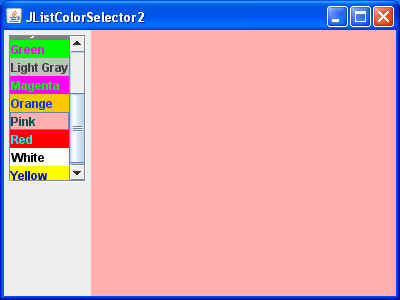
which is much more reasonable, in terms of a JList display (albeit a little garish!).
Note that the definition of DefaultListCellRenderer is:
public class DefaultListCellRenderer extends JLabel
          implements ListCellRenderer, Serializable
which indicates that it is is a JLabel — a Component that can be used directly, and which can handle foreground and background colors, text displays, etc.
A Font List
Here’s another example. We wish to display a JList that will eventually display the selected font in its own rendition.
First, let’s implement such an application in the “dumb” way:
package swingExamples;

import java.awt.BorderLayout;
import java.awt.Color;
import java.awt.Dimension;
import java.awt.Font;
import java.awt.GraphicsEnvironment;

import javax.swing.BorderFactory;
import javax.swing.JFrame;
import javax.swing.JLabel;
import javax.swing.JList;
import javax.swing.JPanel;
import javax.swing.JScrollPane;

import javax.swing.event.ListSelectionEvent;
import javax.swing.event.ListSelectionListener;

public class JListFontSelector1 extends JFrame
{
  public JListFontSelector1()
  {
    setTitle("JListFontSelector1");
    setDefaultCloseOperation(EXIT_ON_CLOSE);
    getContentPane().add( new JListFontPanel() );
    pack();
  }

  //// Inner classes ////
  class JListFontPanel extends JPanel
      implements ListSelectionListener
  {
    JListFontPanel()
    {
      setLayout( new BorderLayout() );

      JPanel listPanel = new JPanel();
      m_list.setSelectedIndex(0);
      m_list.addListSelectionListener(this);
      listPanel.add( new JScrollPane(m_list) );
      add(listPanel, BorderLayout.SOUTH);

      JPanel fontPanel = new JPanel();
      fontPanel.setPreferredSize( new Dimension(500, 50) );
      fontPanel.setBackground(Color.WHITE);
      fontPanel.setBorder(
          BorderFactory.createCompoundBorder(
            BorderFactory.createEmptyBorder(5, 5, 5, 5),
            BorderFactory.createLineBorder(Color.BLUE)
            ) );
      String fontName =
          (String) m_list.getSelectedValue();
      m_fontLabel.setFont(
          new Font(fontName, Font.PLAIN, 16) );
      fontPanel.add(m_fontLabel);
      add(fontPanel, BorderLayout.NORTH);
    }

    public void valueChanged(ListSelectionEvent e)
    {
      JList source = (JList) e.getSource();
      String fontName = (String) source.getSelectedValue();
      m_fontLabel.setFont(
          new Font(fontName, Font.PLAIN, 16) );
    }

    private JList  m_list = new JList(FONT_NAMES);
    private JLabel m_fontLabel =
        new JLabel(
        "The quick brown fox jumps over the lazy dog");
  }

  private static final String[] FONT_NAMES =
      GraphicsEnvironment.getLocalGraphicsEnvironment()
                         .getAvailableFontFamilyNames();

  /**
   * Main entry point for program
   */
  public static void main(String[] args)
  {
    JListFontSelector1 frame = new JListFontSelector1();
    frame.setVisible(true);
  }
}
which displays as follows:

A Font-Rendered List
Now, to display the JList in the appropriate font, we use a FontListCellRenderer:
package swingExamples;

import java.awt.BorderLayout;
import java.awt.Color;
import java.awt.Dimension;
import java.awt.Font;
import java.awt.GraphicsEnvironment;

import javax.swing.BorderFactory;
import javax.swing.JFrame;
import javax.swing.JLabel;
import javax.swing.JList;
import javax.swing.JPanel;
import javax.swing.JScrollPane;

import javax.swing.event.ListSelectionEvent;
import javax.swing.event.ListSelectionListener;

public class JListFontSelector2 extends JFrame
{
  public JListFontSelector2()
  {
    setTitle("JListFontSelector2");
    setDefaultCloseOperation(EXIT_ON_CLOSE);
    getContentPane().add( new JListFontPanel() );
    pack();
  }

  //// Inner classes ////
  class JListFontPanel extends JPanel
      implements ListSelectionListener
  {
    JListFontPanel()
    {
      setLayout( new BorderLayout() );

      JPanel listPanel = new JPanel();
      m_list.setSelectedIndex(0);
      m_list.setCellRenderer( new FontRenderer() );
      m_list.addListSelectionListener(this);
      listPanel.add( new JScrollPane(m_list) );
      add(listPanel, BorderLayout.SOUTH);

      JPanel fontPanel = new JPanel();
      fontPanel.setPreferredSize( new Dimension(500, 50) );
      fontPanel.setBackground(Color.WHITE);
      fontPanel.setBorder(
          BorderFactory.createCompoundBorder(
            BorderFactory.createEmptyBorder(5, 5, 5, 5),
            BorderFactory.createLineBorder(Color.BLUE)
            ) );
      String fontName =
          (String) m_list.getSelectedValue();
      m_fontLabel.setFont(
          new Font(fontName, Font.PLAIN, 16) );
      fontPanel.add(m_fontLabel);
      add(fontPanel, BorderLayout.NORTH);
    }

    public void valueChanged(ListSelectionEvent e)
    {
      JList source = (JList) e.getSource();
      String fontName = (String) source.getSelectedValue();
      m_fontLabel.setFont(
          new Font(fontName, Font.PLAIN, 16) );
    }

    private JList  m_list = new JList(FONT_NAMES);
    private JLabel m_fontLabel =
        new JLabel(
        "The quick brown fox jumps over the lazy dog");
  }

  private static final String[] FONT_NAMES =
      GraphicsEnvironment.getLocalGraphicsEnvironment()
                         .getAvailableFontFamilyNames();

  /**
   * Main entry point for program
   */
  public static void main(String[] args)
  {
    JListFontSelector2 frame = new JListFontSelector2();
    frame.setVisible(true);
  }
}
package swingExamples;

import java.awt.Color;
import java.awt.Component;
import java.awt.Dimension;
import java.awt.Font;
import java.awt.FontMetrics;
import java.awt.Graphics;

import javax.swing.JList;
import javax.swing.JPanel;
import javax.swing.ListCellRenderer;

public class FontRenderer extends JPanel
    implements ListCellRenderer
{
  public Component getListCellRendererComponent(
      JList list,
      Object value,
      int index,
      boolean isSelected,
      boolean cellHasFocus
      )
  {
    String fontName = (String) value;
    // Set a tooltip on this panel for the font name
    setToolTipText(fontName);

    m_font = new Font(fontName, Font.PLAIN, 14);
    m_background = isSelected ?
      list.getSelectionBackground() : list.getBackground();
    m_foreground = isSelected ?
      list.getSelectionForeground() : list.getForeground();
    return this;
  }

  public void paintComponent(Graphics g)
  {
    String text = m_font.getFamily();
    FontMetrics fm = g.getFontMetrics(m_font);
    g.setColor(m_background);
    g.fillRect(0, 0, getWidth(), getHeight());
    g.setColor(m_foreground);
    g.setFont(m_font);
    g.drawString(text, 0, fm.getAscent());
  }

  public Dimension getPreferredSize()
  {
    String text = m_font.getFamily();
    Graphics g = getGraphics();
    FontMetrics fm = g.getFontMetrics(m_font);
    return new Dimension(
        fm.stringWidth(text), fm.getHeight());
  }

  /// Private data ///
  private Font m_font;
  private Color m_background;
  private Color m_foreground;
}
which produces the following:

which is much improved.
Notice that it also shows those fonts which do not produce visible text (some show no visible name; some show only boxes). So that you can tell which font they represent, I added a “tool tip” which shows the font name if you simply move the mouse over that entry in the list.This shows that the FontListCellRenderer does not have to extend from DefaultListCellRenderer, and that it does not have to extend from JLabel.