
Table of Contents
Normally, when you draw in the Graphics context, it draws the color that you have set for the foreground color. In other words, this mode overwrites any color that was present before. This is called Paint mode.
There is also a second mode, XOR mode, which you select with a call:
g.setXORMode(xorColor);
XOR mode changes the behavior in the following ways:
- If you draw on top of pixels that are already in the current color, then the system changes them to the color specified in the setXORMode call.
- If you draw on top of pixels that are already in the color of the setXORMode parameter, then the system changes them to the current color.
- Any other colors are also changed by the system.
If you draw a shape in XOR mode, with a certain color, and then draw it again in the same position with the same color, the effect is as if you hadn’t drawn anything in the first place.
XOR Mode Example
Here’s an example of XOR mode:
package swingExamples;

import java.awt.Color;
import java.awt.Container;
import java.awt.Font;
import java.awt.Graphics;

import javax.swing.JFrame;
import javax.swing.JPanel;

class XORModeDisplayPanel extends JPanel
{
  public XORModeDisplayPanel()
  {
    setBackground(Color.BLACK);
  }

  public void paintComponent(Graphics g)
  {
    super.paintComponent(g);

    Font font = new Font("sansserif", Font.BOLD, 16);
    g.setFont(font);
    g.setColor(Color.WHITE);

    g.drawString("Paint mode:", 5, 20);
    paintInMode(g, 0, 30, false); // Use paint mode

    g.setColor(Color.WHITE);
    g.fillRect(5, 170, 220, 3);

    g.drawString("XOR mode:", 5, 200);
    paintInMode(g, 0, 210, true); // Use XOR mode
  }

  private void paintInMode(Graphics g, int x, int y, boolean useXOR)
  {
    // Ensure we start in paint mode.
    g.setPaintMode();

    // Draw a red filled rectangle
    g.setColor(Color.RED);
    g.fillRect(x + 10, y + 10, 80, 30);

    // Draw a green filled rectangle, overlapping the red rectangle
    g.setColor(Color.GREEN);
    g.fillRect(x + 50, y + 20, 80, 30);

    // Draw a blue filled rectangle, overlapping the green rectangle
    g.setColor(Color.BLUE);
    g.fillRect(x + 130, y + 40, 80, 30);

    if (useXOR)
    {
      // Set XOR mode, with a green XOR color
      g.setXORMode(Color.GREEN);
    }

    // Draw another blue filled rectangle, offset from the previous blue one.
    g.fillRect(x + 90, y + 30, 80, 30);

    if (useXOR)
    {
      // Return to paint mode.
      g.setPaintMode();
    }

    // Draw a red filled rectangle
    g.setColor(Color.RED);
    g.fillRect(x + 10, y + 80, 80, 30);

    if (useXOR)
    {
      // Go into XOR mode, with an XOR color of red
      g.setXORMode(Color.RED);
    }

    // Draw a blue filled rectangle, overlapping the red rectangle
    g.setColor(Color.BLUE);
    g.fillRect(x + 50, y + 90, 80, 30);

    // Draw another blue filled rectangle slightly offset from the previous
    // blue rectangle.
    g.fillRect(x + 55, y + 95, 80, 30);
  }
}

class XORModeDisplayFrame extends JFrame
{
  public XORModeDisplayFrame()
  {
    setTitle("XOR Mode Display");
    setSize(250, 400);
    setDefaultCloseOperation(EXIT_ON_CLOSE);
    Container contentPane = getContentPane();
    contentPane.add(new XORModeDisplayPanel());
  }
}

public class XORModeDisplay
{
  public static void main(String[] args)
  {
    XORModeDisplayFrame f = new XORModeDisplayFrame();
    f.setVisible(true);
  }
}
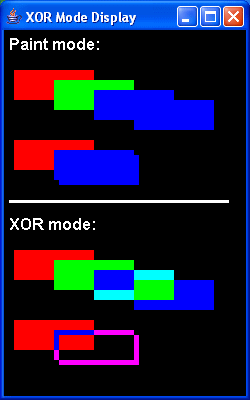
Note that I show the results for regular paint mode, and then for XOR mode.
The above program produces the following:
Simple Animation
Here’s an applet that demonstrates some simple animation.
We don’t have applet support here (and you probably don’t have it in your browser), so we just provide the code.
Here’s the applet code:
package swingExamples;

import java.awt.Color;
import java.awt.Container;
import java.awt.Graphics;

import java.awt.event.ActionEvent;
import java.awt.event.ActionListener;

import javax.swing.JApplet;
import javax.swing.JPanel;
import javax.swing.Timer;

class SimpleAnimationDisplayPanel extends JPanel
    implements ActionListener
{
  public SimpleAnimationDisplayPanel()
  {
    setBackground(Color.BLACK);
    // This timer "goes off" every 10 milliseconds
    Timer timer = new Timer(10, this);
    timer.start();
  }

  public void paintComponent(Graphics g)
  {
    super.paintComponent(g);

    g.setXORMode( getBackground() );
    g.setColor(Color.RED);
    g.fillRect(m_squareX, m_squareY, m_squareSize, m_squareSize);
    g.setColor(Color.GREEN);
    g.fillOval(m_ballX + m_ballDiameter / 2, m_ballY + m_ballDiameter / 2,
        m_ballDiameter, m_ballDiameter);
  }

  public void actionPerformed(ActionEvent event)
  {
    // Do the animation by using XOR mode and repeated
    // repaints, modifying the coordinates of the shapes
    // between repaints.
    int width = getWidth();
    repaint();
    m_ballX++;
    if (m_ballX > width)
      m_ballX = 0;
    m_ballY++;
    if (m_ballY > width)
      m_ballY = 0;

    m_squareX--;
    if (m_squareX < 0)
      m_squareX = width;
    m_squareY++;
    if (m_squareY > width)
      m_squareY = 0;
    repaint();
  }

  ///// Private data /////

  // Coordinates of the ball and square to animate.
  private int m_ballX = 0;
  private int m_ballY = 0;
  private int m_ballDiameter = 30;
  private int m_squareX = 200;
  private int m_squareY = 0;
  private int m_squareSize = 50;
}

public class SimpleAnimationDisplayApplet extends JApplet
{
  public SimpleAnimationDisplayApplet()
  {
    Container contentPane = getContentPane();
    contentPane.add(new SimpleAnimationDisplayPanel());
  }
}