
Table of Contents
So how do we add content to a JFrame ?
As we’ll see here, we need to learn about:
- Panes (sometimes called Panels)
and then we’ll learn how to display text, and control that display using fonts.
JFrame Internal Structure
A JFrame is quite a complex beast if you look at the number of panes it has associated with it:

Suffice it to say that there is only one pane of interest to us at this point:
- The content pane.
The content pane is where you place the content of the frame (surprise!).
Note: This is unlike AWT, where you simply add your content directly to the frame itself.
You obtain the content pane by calling getContentPane() — again, surprise!
Graphics Context
Before we go any further, one concept we need to understand is that of a graphics context, which in Java is represented by the Graphics class.
What is a graphics context?
Basically, it provides a context within which you can draw. As the Graphics class documents (see the Java API javadocs), it encapsulates state information needed for the basic rendering operations that Java supports. This state information includes the following properties:
- The
Componentobject on which to draw. - A translation origin for rendering and clipping coordinates.
- The current clip.
- The current color.
- The current font.
- The current logical pixel operation function (XOR or Paint).
- The current XOR alternation color (see later).
We will see how you can draw inside Java Swing frames, panels, and other GUI components.
If you ever venture into printing from Java, you will find the same concept there, except that the context is focused not on a GUI window, but on a printable page. We won’t get into printing from Java in this course — that’s a more advanced topic.
For drawing on the screen, Java originally provided only the Graphics class, which is actually an abstract base class, from which all graphics context classes extend. You can see what it (or rather, a class that extends it) provides by going to its javadoc page.
Java 1.2 and beyond adds the Java 2D library, which augments the ability to draw to a considerable degree. It uses Graphics2D, which is another abstract class that extends the Graphics class. You can find the details at its javadoc page.
Graphics2D provides much more sophisticated control over geometry, coordinate transformations, color management, and text layout. Thoroughly covering the Java 2D library could take up an entire semester course, so we won’t be going into detail on Java 2D. We may show some examples of Java 2D later.
We’ll be seeing the use of a graphics context in lots of subsequent drawing examples.
Displaying Text
The paintComponent()method
In order to display text in a content pane, you have to:
- Create a class that extends
JPanel - Implement
paintComponent(Graphics g)in that class; this is where all the drawing of text occurs- The first thing this method should do is call
super.paintComponent(g)— if you don’t, you will most likely find that strange things happen. - The rest of the code in the method should cause graphic elements to be displayed — in this case, we’ll be displaying text.
- The first thing this method should do is call
- Finally:
- Create an instance of this class and add it to the JFrame‘s content pane.
Note: In addition to the
paintComponent(Graphics g)method, there is also apaint(Graphics g)method. Don’t get confused between the two methods:
- If you’re programming in Swing, use
paintComponent - If you’re programming in AWT, use
paint
Here’s an example:
package swingExamples;

import java.awt.Container;
import java.awt.Graphics;

import javax.swing.JFrame;
import javax.swing.JPanel;

class TextDisplayPanel extends JPanel
{
  public void paintComponent(Graphics g)
  {
    // Don't forget to do this!
    super.paintComponent(g);
    // Display the text in the panel
    g.drawString("Hello from a Java Swing application!", 50, 80);
  }
}

class TextDisplayFrame extends JFrame
{
  public TextDisplayFrame()
  {
    setTitle("Text Display Frame");
    setSize(300, 200);
    setDefaultCloseOperation(EXIT_ON_CLOSE);
    // Find the JFrame's content pane
    Container contentPane = getContentPane();
    // Add the TextDisplayPanel to the content pane
    contentPane.add( new TextDisplayPanel() );
  }
}

public class TextDisplay
{
  public static void main(String[] args)
  {
    TextDisplayFrame frame = new TextDisplayFrame();
    frame.setVisible(true);
  }
}
Here’s the result:

Text & Fonts
Now, let’s say you want to display the text in a different way — perhaps using a particular font:
package swingExamples;

import java.awt.Container;
import java.awt.Font;
import java.awt.Graphics;

import javax.swing.JFrame;
import javax.swing.JPanel;

class BoldTextDisplayPanel extends JPanel
{
  public void paintComponent(Graphics g)
  {
    super.paintComponent(g);
    Font font = new Font("Serif", Font.BOLD, 16);
    g.setFont(font);
    g.drawString("Hello from a Java Swing application!", 20, 80);
  }
}

class BoldTextDisplayFrame extends JFrame
{
  public BoldTextDisplayFrame()
  {
    setTitle("Font Display Frame");
    setSize(300, 200);
    setDefaultCloseOperation(EXIT_ON_CLOSE);
    Container contentPane = getContentPane();
    contentPane.add( new BoldTextDisplayPanel() );
  }
}

public class BoldTextDisplay
{
  public static void main(String[] args)
  {
    BoldTextDisplayFrame frame = new BoldTextDisplayFrame();
    frame.setVisible(true);
  }
}
which produces:

Mixing Fonts
We can get fancier, and mix and match fonts in the display, by using the Font and FontMetrics classes.
package swingExamples;

import java.awt.Container;
import java.awt.Font;
import java.awt.FontMetrics;
import java.awt.Graphics;

import javax.swing.JFrame;
import javax.swing.JPanel;

class FancyFontDisplayPanel extends JPanel
{
  public void paintComponent(Graphics g)
  {
    super.paintComponent(g);
    Font f = new Font("Serif", Font.PLAIN, 14);
    Font fi = new Font("Serif", Font.BOLD | Font.ITALIC, 14);
    FontMetrics fm = g.getFontMetrics(f);
    FontMetrics fim = g.getFontMetrics(fi);
    String s1 = "Hello from a ";
    String s2 = "Java Swing ";
    String s3 = "application!";
    int cx = 20;
    int cy = 80;
    g.setFont(f);
    g.drawString(s1, cx, cy);
    cx += fm.stringWidth(s1);
    g.setFont(fi);
    g.drawString(s2, cx, cy);
    cx += fim.stringWidth(s2);
    g.setFont(f);
    g.drawString(s3, cx, cy);
  }
}

class FancyFontDisplayFrame extends JFrame
{
  public FancyFontDisplayFrame()
  {
    setTitle("FancyFontDisplayFrame");
    setSize(300, 200);
    setDefaultCloseOperation(EXIT_ON_CLOSE);
    Container contentPane = getContentPane();
    contentPane.add( new FancyFontDisplayPanel() );
  }
}

public class FancyFontDisplay
{
  public static void main(String[] args)
  {
    FancyFontDisplayFrame frame = new FancyFontDisplayFrame();
    frame.setVisible(true);
  }
}
which produces:
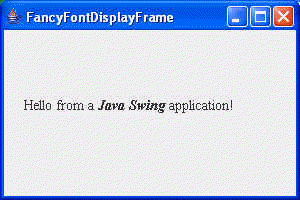
However, this is clearly a pain in the neck to program! There are better mechanisms, but we won’t get to them in this course.
Finding & Displaying Fonts
There are only a small number of fonts that are guaranteed to be present in every Java environment:
- Serif
- SansSerif
- Monospaced
- Dialog
- DialogInput
Each one of these is actually a logical font name, which is mapped to a specific platform-specific font on each platform.
For JDK 1.1 and up, the following font names are deprecated (the replacement name follows):
- TimesRoman (use Serif)
- Helvetica (use SansSerif)
- Courier (use Monospaced)
The ZapfDingbats font is also deprecated in 1.1 on up, but only as a separate font name.
Here’s a program that finds the fonts available to it, and displays them:
package swingExamples;

import java.awt.Color;
import java.awt.Container;
import java.awt.Font;
import java.awt.FontMetrics;
import java.awt.Graphics;
import java.awt.Toolkit;

import javax.swing.JFrame;
import javax.swing.JPanel;

class AllFontsDisplayPanel extends JPanel
{
  public AllFontsDisplayPanel()
  {
    setBackground(Color.white);
  }

  public void paintComponent(Graphics g)
  {
    super.paintComponent(g);

    int x = 10;
    int y = 20;
    Font font = null;
    FontMetrics fm = null;
    String fontString = null;
    for (int i = 0; i < m_font.length; i++)
    {
      String fontName = m_font[i];
      font = new Font(fontName, Font.PLAIN, 18);
      g.setFont(font);
      fm = g.getFontMetrics(font);
      if (i > 0)
        y += fm.getAscent();
      g.drawString( fontName, x, y );
      y += fm.getDescent() + fm.getLeading();
    }
  }

  private String[] m_font =
          Toolkit.getDefaultToolkit().getFontList();
}

class AllFontsDisplayFrame extends JFrame
{
  public AllFontsDisplayFrame()
  {
    setTitle("AllFontsDisplay");
    setSize(300, 200);
    setDefaultCloseOperation(EXIT_ON_CLOSE);
    Container contentPane = getContentPane();
    contentPane.add( new AllFontsDisplayPanel() );
  }
}

public class AllFontsDisplay
{
  public static void main(String[] args)
  {
    AllFontsDisplayFrame frame = new AllFontsDisplayFrame();
    frame.setVisible(true);
  }
}
and here’s what it produces on my Windows system:
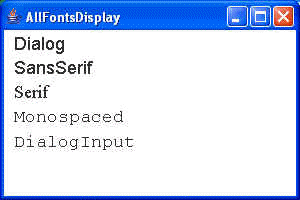
Note that the
getFontList()method is deprecated. We will see a program later that uses the preferred replacement for this method.