
Table of Contents
Then there are dialog boxes, of various different types…
JOptionPane Dialogs
The JOptionPane class provides a useful set of dialog boxes, from the very simple to the fairly complex. It’s surprising how much you can accomplish using just one of the static methods provided by JOptionPane. You can create:
- Message Dialog — Tells the user about something that has happened.
- Confirm Dialog — Asks a confirming question, like yes/no/cancel.
- Input Dialog — Prompts for some input.
- Option Dialog — The Grand Unification of the above three.
Message Dialogs
Here’s an example of how you can create a message dialog:
package swingExamples;

import javax.swing.JOptionPane;

public class SimpleMessage1
{
  public static void main(String[] args)
  {
    JOptionPane.showMessageDialog(
        null, // The parent frame
        "You are hereby informed of an important fact."
              // A message
        );
  }
}
which produces the following:
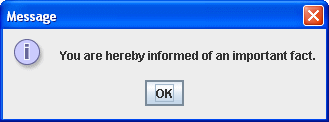
Note that there are three obvious components of this dialog:
- The message
- An icon to the left of the message, indicating what kind of message it is (Informational, Warning, Error, etc.)
- The OK button.
If we modify this simple example a little:
package swingExamples;

import javax.swing.JOptionPane;

public class SimpleMessage2
{
  public static void main(String[] args)
  {
    JOptionPane.showMessageDialog(
        null,     // The parent frame
        "You are hereby informed of an error.",
                  // a message
        "Error",  // a title
        JOptionPane.ERROR_MESSAGE
                  // The message type
        );
  }
}
The result looks like this:
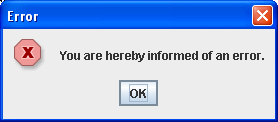
Note two things:
- The titlebar shows the specified title
- The icon has changed to indicate that an error is indicated.
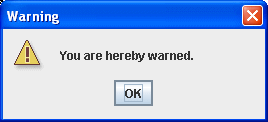
If we wanted to show a warning:
package swingExamples;

import javax.swing.JOptionPane;

public class SimpleMessage3
{
  public static void main(String[] args)
  {
    JOptionPane.showMessageDialog(
        null, // The parent frame
        "You are hereby warned.",
              // a message
        "Warning", // a title
        JOptionPane.WARNING_MESSAGE
              // Warning type
        );
  }
}
it would look like this:
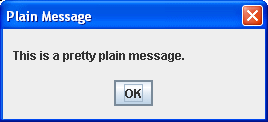
You also have the option of not showing an icon:
package swingExamples;

import javax.swing.JOptionPane;

public class SimpleMessage4
{
  public static void main(String[] args)
  {
    JOptionPane.showMessageDialog(
        null, // The parent frame
        "This is a pretty plain message.",
              // a message
        "Plain Message", // a title
        JOptionPane.PLAIN_MESSAGE
              // Plain type
        );
  }
}
which looks like:
You can also ask a question:
package swingExamples;

import javax.swing.JOptionPane;

public class SimpleMessage5
{
  public static void main(String[] args)
  {
    JOptionPane.showMessageDialog(
        null, // The parent frame
        "Are you sure you want to do this?",
              // a message
        "Just checking...", // a title
        JOptionPane.QUESTION_MESSAGE
              // Question type
        );
  }
}
which looks like this:
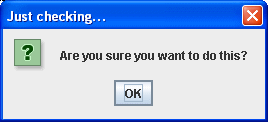
Of course, when the only option is OK, it’s not terribly useful!
That’s where Confirm Dialogs come in…
Confirm Dialogs
It’s not very nice to ask a question, and then only give one option for an answer. So there’s also a Confirm Dialog, where we can specify more response buttons be made available:
package swingExamples;

import javax.swing.JOptionPane;

public class SimpleConfirm1
{
  public static void main(String[] args)
  {
    JOptionPane.showConfirmDialog(
        null, // The parent frame
        "Are you sure you want to do this?",
              // a message
        "Just checking...", // a title
        JOptionPane.YES_NO_OPTION,
                      // The option type
        JOptionPane.QUESTION_MESSAGE
                      // the message type
        );
  }
}
which produces:

Now, we’d like to know how the user answered, so we can do the following:
package swingExamples;

import javax.swing.JOptionPane;

public class SimpleConfirm2
{
  public static void main(String[] args)
  {
    int status = JOptionPane.showConfirmDialog(
        null, // The parent frame
        "Are you sure you want to do this?",
              // a message
        "Just checking...", // a title
        JOptionPane.YES_NO_OPTION,
                      // The option type
        JOptionPane.QUESTION_MESSAGE
                      // the message type
        );
    if (status == JOptionPane.YES_OPTION)
    {
      System.out.println("You said Yes!");
    }
    else if (status == JOptionPane.NO_OPTION)
    {
      System.out.println("You said No!");
    }
  }
}
which produces the following, after the user responds by clicking on the No button:
You said No!
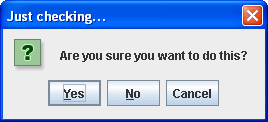
Now, sometimes it’s necessary to give the user a third choice: Yes, No, or Cancel, so here’s how you would do that:
package swingExamples;

import javax.swing.JOptionPane;

public class SimpleConfirm3
{
  public static void main(String[] args)
  {
    int status = JOptionPane.showConfirmDialog(
        null, // The parent frame
        "Are you sure you want to do this?",
              // a message
        "Just checking...", // a title
        JOptionPane.YES_NO_CANCEL_OPTION,
              // The option type
        JOptionPane.QUESTION_MESSAGE
              // the message type
        );
    if (status == JOptionPane.YES_OPTION)
       System.out.println("You said Yes!");
    else if (status == JOptionPane.NO_OPTION)
       System.out.println("You said No!");
    else if (status == JOptionPane.CANCEL_OPTION)
       System.out.println("You cancelled!");
  }
}
which produces:
and in response to the user clicking on Cancel, the program prints out:
You cancelled!
Option Dialogs
Finally, there’s the Option Dialog, which has lots (lots!) of flexibility.
Example:
package swingExamples;

import javax.swing.JOptionPane;

public class TriviaGame1
{
  public static void main(String[] args)
  {
    boolean playAgain = true;
    while (playAgain)
    {
      playAgain = play();
    }
  }

  private static boolean play()
  {
    int score = 0;
    String[] choices = null;
    int answer = -1;
    int selection = JOptionPane.CLOSED_OPTION;

    // Questions 1 through 3...

    // Question 4 for sports
    choices = new String[]
    {
      "USC", "Notre Dame", "North Carolina"
    };
    answer = 1; // I don't know, so this is random...
    selection = JOptionPane.showOptionDialog(
        null,
        "\nWhich team broke UCLA basketball's " +
        "\n88 game win streak?",
        "Question 4 of 5",
        JOptionPane.DEFAULT_OPTION,
        JOptionPane.QUESTION_MESSAGE,
        null,
        choices,
        choices[0]
        );
    if (selection == answer)
    {
      score++;
    }

    // Questions 5 on...

    int response = JOptionPane.showConfirmDialog(
        null,
        "Your score was " + score +
        "\n\nDo you want to play again?",
        "Score",
        JOptionPane.YES_NO_OPTION);
    boolean playAgain = false;
    if (response == JOptionPane.YES_OPTION)
    {
      playAgain = true;
    }
    return playAgain;
  }
}
which brings up the following dialog:
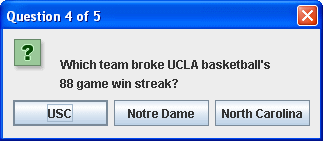
and the user can choose to click the appropriate button.
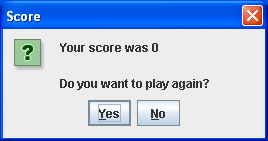
At the end of the game, the user gets informed of his/her score, and gets prompted to play again:
Getting More Sophisticated
But if there are a number of options, it may be more appropriate to get more sophisticated:
package swingExamples;

import java.awt.BorderLayout;
import java.awt.GridLayout;

import javax.swing.ButtonGroup;
import javax.swing.JOptionPane;
import javax.swing.JPanel;
import javax.swing.JRadioButton;
import javax.swing.JTextArea;

public class TriviaGame2
{
  public static void main(String[] args)
  {
    boolean playAgain = true;
    while (playAgain)
    {
      playAgain = play();
    }
  }

  private static boolean play()
  {
    int score = 0;
    JRadioButton[] choices = null;
    int answer = -1;
    int selection = -1;

    // Questions 1 through 3...

    // Question 4 for sports
    choices = new JRadioButton[]
    {
      new JRadioButton("USC"),
      new JRadioButton("Notre Dame"),
      new JRadioButton("North Carolina")
    };
    answer = 1; // I don't know, so this is random...
    OptionsPanel optionsPanel =
        new OptionsPanel(
        "Which team broke UCLA basketball's " +
        "\n88 game win streak?",
        choices);
    JOptionPane.showOptionDialog(
        null,
        optionsPanel,
        "Question 4 of 5",
        JOptionPane.DEFAULT_OPTION,
        JOptionPane.QUESTION_MESSAGE,
        null,
        null,
        null
        );
    selection = optionsPanel.getSelectedOption();
    if (selection == answer)
    {
      score++;
    }

    // Questions 5 on...

    int response = JOptionPane.showConfirmDialog(
        null,
        "Your score was " + score +
        "\n\nDo you want to play again?",
        "Score",
        JOptionPane.YES_NO_OPTION);
    boolean playAgain = false;
    if (response == JOptionPane.YES_OPTION)
    {
      playAgain = true;
    }
    return playAgain;
  }
}

class OptionsPanel extends JPanel
{
  public OptionsPanel(String question, JRadioButton[] buttons)
  {
    setLayout(new BorderLayout());
    JTextArea questionArea = new JTextArea(question);
    questionArea.setEditable(false);
    questionArea.setBackground(getBackground());
    add(questionArea, BorderLayout.NORTH);
    JPanel answersPanel = new JPanel();
    answersPanel.setLayout(new GridLayout(buttons.length, 1));
    add(answersPanel, BorderLayout.CENTER);
    for (int i = 0; i < buttons.length; i++)
    {
      if (i == 0)
      {
        buttons[i].setSelected(true);
      }
      answersPanel.add(buttons[i]);
      m_group.add(buttons[i]);
    }
    m_buttons = buttons;
  }

  public int getSelectedOption()
  {
    for (int i = 0; i < m_buttons.length; i++)
    {
      if (m_buttons[i].isSelected())
      {
        return i;
      }
    }
    return -1; // Should never happen
  }

  private ButtonGroup m_group = new ButtonGroup();
  private JRadioButton[] m_buttons;
}
which produces:
