
Table of Contents
Originally, Java only provided relatively simple support for drawing shapes. This support was provided in the java.awt.Graphics class, and was very limited:
- You could only draw a limited set of shapes:
- Lines, rectangles, ellipses, etc.
- You could not vary the line thickness. It was always set at 1.
- You could not rotate, or otherwise transform the shapes.
Then, in JDK 1.2, a richer level of support was added for drawing shapes. It was called the Java 2D library.
Simple Shapes
Here are some examples of how you can use the original, relatively primitive, support for drawing provided by the java.awt.Graphics class:
- Outline shapes
- Filled shapes
Outline Shapes
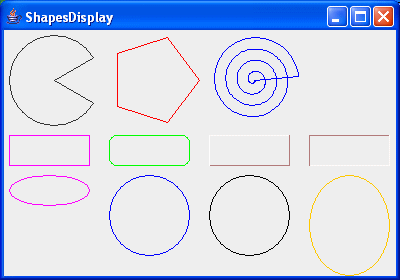
Here’s an example of how you can draw outline shapes using the original, primitive AWT drawing support:
package swingExamples;

import java.awt.Color;
import java.awt.Container;
import java.awt.Graphics;
import java.awt.Polygon;

import javax.swing.JFrame;
import javax.swing.JPanel;

class ShapesDisplayPanel extends JPanel
{
  public void paintComponent(Graphics g)
  {
    super.paintComponent(g);
    int cx = 5;
    int cy = 5;
    cy = drawPolys(g, cx, cy);
    cy = drawRects(g, cx, cy);
    cy = drawOvals(g, cx, cy);
  }

  private int drawPolys(Graphics g, int cx, int cy)
  {
    int r = 45;     // radius of circle
    cx += r;
    cy += r;
    int angle = 30;

    int dx = (int)(r * Math.cos(angle * Math.PI/180));
    int dy = (int)(r * Math.sin(angle * Math.PI/180));

    g.drawLine(cx, cy, cx + dx, cy + dy);
    g.drawLine(cx, cy, cx + dx, cy - dy);
    g.drawArc(cx - r, cy - r, 2 * r, 2 * r, angle, 360 - 2*angle);

    Polygon poly = new Polygon();
    cx += 100;
    for (int i = 0; i < 5; i++)
    {
      poly.addPoint((int)(cx + r * Math.cos(i * 2 * Math.PI/5)),
          (int)(cy + r * Math.sin(i * 2 * Math.PI/5)));
    }
    g.setColor(Color.RED);
    g.drawPolygon(poly);

    poly = new Polygon();
    cx += 100;
    for (int i = 0; i < 360; i++)
    {
      double t = i/360.0;
      poly.addPoint((int)(cx + r * t * Math.cos(8 * t * Math.PI)),
          (int)(cy + r * t * Math.sin(8 * t * Math.PI)));
    }
    g.setColor(Color.BLUE);
    g.drawPolygon(poly);

    return cy + r + 10;
  }

  private int drawRects(Graphics g, int cx, int cy)
  {
    int width = 80;
    int height = 30;

    g.setColor(Color.MAGENTA);
    g.drawRect(cx, cy, width, height);

    cx += 100;
    g.setColor(Color.GREEN);
    g.drawRoundRect(cx, cy, width, height, 15, 15);

    cx += 100;
    g.setColor(Color.PINK);
    g.draw3DRect(cx, cy, width, height, true);

    cx += 100;
    g.draw3DRect(cx, cy, width, height, false);

    return cy + height + 10;
  }

  private int drawOvals(Graphics g, int cx, int cy)
  {
    int width = 80;
    int height = 30;

    g.setColor(Color.MAGENTA);
    g.drawOval(cx, cy, width, height);

    cx += 100;
    height = 80;
    g.setColor(Color.BLUE);
    g.drawArc(cx, cy, width, height, 0, 360);

    cx += 100;
    g.setColor(Color.BLACK);
    g.drawOval(cx, cy, width, height);

    cx += 100;
    height = 100;
    g.setColor(Color.ORANGE);
    g.drawOval(cx, cy, width, height);

    return cy + height + 10;
  }
}

class ShapesDisplayFrame extends JFrame
{
  public ShapesDisplayFrame()
  {
    setTitle("ShapesDisplay");
    setSize(400, 280);
    setDefaultCloseOperation(EXIT_ON_CLOSE);
    Container contentPane = getContentPane();
    contentPane.add( new ShapesDisplayPanel() );
  }
}

public class ShapesDisplay
{
  public static void main(String[] args)
  {
    ShapesDisplayFrame frame = new ShapesDisplayFrame();
    frame.setVisible(true);
  }
}
which produces:
Filled Shapes
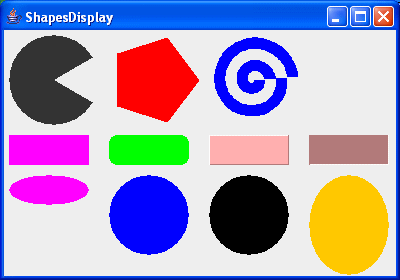
The previous example can be easily modified to create filled shapes, by changing the calls made in ShapesDisplayPanel:
package swingExamples;

import java.awt.Color;
import java.awt.Container;
import java.awt.Dimension;
import java.awt.Graphics;
import java.awt.Polygon;

import javax.swing.JFrame;
import javax.swing.JPanel;

class FilledShapesDisplayPanel extends JPanel
{
    public void paintComponent(Graphics g)
    {
        super.paintComponent(g);
        int cx = 5;
        int cy = 5;
        cy = drawPolys(g, cx, cy);
        cy = drawRects(g, cx, cy);
        cy = drawOvals(g, cx, cy);
    }

    private int drawPolys(Graphics g, int cx, int cy)
    {
        int r = 45;     // radius of circle
        cx += r;
        cy += r;
        int angle = 30;

        int dx = (int)(r * Math.cos(angle * Math.PI/180));
        int dy = (int)(r * Math.sin(angle * Math.PI/180));

        g.fillArc(cx - r, cy - r, 2*r, 2*r, angle, 360 - 2*angle);

        Polygon poly = new Polygon();
        cx += 100;
        for (int i = 0; i < 5; i++)
        {
            poly.addPoint((int)(cx + r * Math.cos(i * 2 * Math.PI/5)),
                          (int)(cy + r * Math.sin(i * 2 * Math.PI/5)));
        }
        g.setColor(Color.RED);
        g.fillPolygon(poly);

        poly = new Polygon();
        cx += 100;
        for (int i = 0; i < 360; i++)
        {
            double t = i/360.0;
            poly.addPoint((int)(cx + r * t * Math.cos(8 * t * Math.PI)),
                          (int)(cy + r * t * Math.sin(8 * t * Math.PI)));
        }
        g.setColor(Color.BLUE);
        g.fillPolygon(poly);

        return cy + r + 10;
    }

    private int drawRects(Graphics g, int cx, int cy)
    {
        int width = 80;
        int height = 30;

        g.setColor(Color.MAGENTA);
        g.fillRect(cx, cy, width, height);

        cx += 100;
        g.setColor(Color.GREEN);
        g.fillRoundRect(cx, cy, width, height, 15, 15);

        cx += 100;
        g.setColor(Color.PINK);
        g.fill3DRect(cx, cy, width, height, true);

        cx += 100;
        g.fill3DRect(cx, cy, width, height, false);

        return cy + height + 10;
    }

    private int drawOvals(Graphics g, int cx, int cy)
    {
        int width = 80;
        int height = 30;

        g.setColor(Color.MAGENTA);
        g.fillOval(cx, cy, width, height);

        cx += 100;
        height = 80;
        g.setColor(Color.BLUE);
        g.fillArc(cx, cy, width, height, 0, 360);

        cx += 100;
        g.setColor(Color.BLACK);
        g.fillOval(cx, cy, width, height);

        cx += 100;
        height = 100;
        g.setColor(Color.ORANGE);
        g.fillOval(cx, cy, width, height);

        return cy + height + 10;
    }
}

class FilledShapesDisplayFrame extends JFrame
{
    public FilledShapesDisplayFrame()
    {
        setTitle("FilledShapesDisplay");
        setSize(400, 280);
        setDefaultCloseOperation(EXIT_ON_CLOSE);
        Container contentPane = getContentPane();
        contentPane.add( new FilledShapesDisplayPanel() );
    }
}

public class FilledShapesDisplay
{
  public static void main(String[] args)
  {
    FilledShapesDisplayFrame frame = new FilledShapesDisplayFrame();
    frame.setVisible(true);
  }
}
which produces:
Java 2D Shapes
Here is some introductory information on drawing shapes using Java 2D.
Note: Entire books have been written on just this subject, so we won’t go into great detail on Java 2D in this course.
Java 2D provides the ability to:
- Draw shapes whose classes use inheritance to share attributes and behavior:
- Line2D, Rectangle2D, Ellipse2D
- Draw more complex shapes:
- Arcs, quadratic and cubic curves, etc.
- Draw user-defined shapes, using the same inheritance support
- Draw lines with different thicknesses, different “strokes” (dotted, dashed, etc)
- Fill shapes with more complex fillings, such as patterns and blends.
- Perform transformations on those shapes such as rotation, shift, stretch, etc.
Simple Example
To use Java 2D graphics, the same basic principles apply as for the older, more primitive, approach:
- Override the
paintComponentmethod. - Write your rendering code inside your
paintComponentmethod.
The major difference is that you must obtain an object of the java.awt.Graphics2 class.
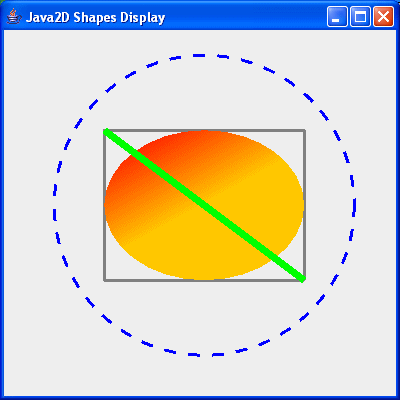
Here’s an example:
package swingExamples;

import java.awt.BasicStroke;
import java.awt.Color;
import java.awt.Container;
import java.awt.GradientPaint;
import java.awt.Graphics;
import java.awt.Graphics2D;

import java.awt.geom.Ellipse2D;
import java.awt.geom.Line2D;
import java.awt.geom.Rectangle2D;

import javax.swing.JFrame;
import javax.swing.JPanel;

class Java2DShapesDisplayPanel extends JPanel
{
  public void paintComponent(Graphics g)
  {
    super.paintComponent(g);

    Graphics2D g2 = (Graphics2D) g;

    // Create a BasicStroke for drawing outlines
    BasicStroke stroke = new BasicStroke(3.0F,
        BasicStroke.CAP_ROUND,
        BasicStroke.JOIN_ROUND);
    g2.setStroke(stroke);

    // Draw a rectangle
    double leftX = 100;
    double topY = 100;
    double width = 200;
    double height = 150;
    Rectangle2D rect = new Rectangle2D.Double(leftX, topY, width, height);
    g2.setPaint(Color.GRAY);
    g2.draw(rect);

    // Draw the enclosed ellipse, with a gradient fill
    Ellipse2D ellipse = new Ellipse2D.Double();
    ellipse.setFrame(rect);
    GradientPaint gp = new GradientPaint(120, 100, Color.RED,
                                         170, 190, Color.ORANGE);
    g2.setPaint(gp);
    g2.fill(ellipse);

    // Draw a diagonal line, with a different stroke
    stroke = new BasicStroke(7.0F, BasicStroke.CAP_BUTT,
                                   BasicStroke.JOIN_ROUND);
    g2.setStroke(stroke);
    g2.setPaint(Color.GREEN);
    g2.draw( new Line2D.Double(leftX, topY,
                               leftX + width, topY + height) );

    // Draw a circle with the same center, using a dashed stroke
    stroke = new BasicStroke(3.0F,
                             BasicStroke.CAP_BUTT,
                             BasicStroke.JOIN_BEVEL,
                             0, new float[] {12, 12}, 0);
    g2.setStroke(stroke);

    double centerX = rect.getCenterX();
    double centerY = rect.getCenterY();
    double radius = 150;
    Ellipse2D circle = new Ellipse2D.Double();
    circle.setFrameFromCenter(centerX, centerY,
        centerX + radius, centerY + radius);
    g2.setPaint(Color.BLUE);
    g2.draw(circle);
  }
}

class Java2DShapesDisplayFrame extends JFrame
{
  public Java2DShapesDisplayFrame()
  {
    setTitle("Java2D Shapes Display");
    setSize(400, 400);
    setDefaultCloseOperation(EXIT_ON_CLOSE);
    Container contentPane = getContentPane();
    contentPane.add( new Java2DShapesDisplayPanel() );
  }
}

public class Java2DShapesDisplay
{
  public static void main(String[] args)
  {
    Java2DShapesDisplayFrame frame = new Java2DShapesDisplayFrame();
    frame.setVisible(true);
  }
}
which produces the following output:
The Java 2D Demo
To give you some idea of the power (and potential complexity!) of Java 2D graphics, you can run the Java 2D demo.
Java 2 (aka 1.2) includes a sample program that demonstrates many of the features of the API. To run it, navigate to the demo/jfc/Java2D directory in the JDK installation directory. Then run the Java2Demo class. For example:
C:> cd \jdk1.2\demo\jfc\Java2D
C:> java Java2Demo
which should bring up something like this:

You can find a variety of Demonstrations of Java’s capabilities here.