
Table of Contents
What would GUI programming be without the ability to control colors?
Naturally, Java provides support for this, via a class called Color. (There are other color-related classes, but they are not as frequently used.)
As with any Java class, you can learn a lot from going to the Color class’s javadoc page.
The primary color model that you will tend to use is the RGB (Red, Green, Blue) model, although there are others. With the RGB model, every color is represented in terms of its red, green and blue components, each within a range of 0 through 255. 0 means no contribution from a given color component, while 255 means 100% contribution from a given color component.
The class Color predefines (as class variables) a set of commonly used colors. Here is an image of a Java application that shows the colors, their names, and their (R,G,B) components:
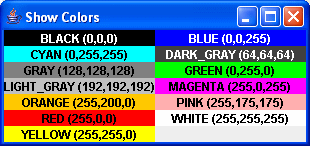
The above names can be used in a Java program to specify a particular color. For example:
Color.MAGENTA
Prior to JDK 1.4, the predefined colors were given only lowercase names:
Color.magenta
and you can still use the lowercase names if you wish. However, all new code should use the uppercase versions.
Note that those (newer) names with an underscore have (older) lowercase equivalents in “bumpy case”:
Color.DARK_GRAY <-> Color.darkGray
Color.LIGHT_GRAY <-> Color.lightGray
Foreground Color
We can use the foreground color to change the color of text, and other drawable items. Here’s an example:
Note that we change the color for the
Graphicsobject, not the panel!
package swingExamples;

import java.awt.Color;
import java.awt.Container;
import java.awt.Dimension;
import java.awt.Font;
import java.awt.FontMetrics;
import java.awt.Graphics;
import java.awt.Insets;

import javax.swing.JFrame;
import javax.swing.JPanel;

class ColorTextDisplayPanel extends JPanel
{
  public void paintComponent(Graphics g)
  {
    if (fm == null)
    {
      fm = g.getFontMetrics(f);
      fim = g.getFontMetrics(fi);
    }

    String s1 = "Greetings from ";
    String s2 = "JavaLand";
    String s3 = " !";
    int w1 = fm.stringWidth(s1);
    int w2 = fim.stringWidth(s2);
    int w3 = fm.stringWidth(s3);
    // Determine the size of the client area
    Dimension d = getSize();
    Insets   in = getInsets();
    int client_width  = d.width - in.right - in.left;
    int client_height = d.height - in.bottom - in.top;
    int cx = (client_width - w1 - w2 - w3)/2;
    int cy = client_height/2;
    // Draw a green rectangle
    // Save the current color so we can later reset it.
    Color originalColor = g.getColor();
    g.setColor(Color.GREEN);
    g.drawRect(10, 10, client_width - 20, client_height - 20);
    // Restore the original color
    g.setColor(originalColor);
    // Now draw the first part of the string in the default color
    g.setFont(f);
    g.drawString(s1, cx, cy);
    cx += w1;
    // Draw the second part of the string in magenta
    g.setColor(Color.MAGENTA);
    g.setFont(fi);
    g.drawString(s2, cx, cy);
    cx += w2;
    // Draw the third part of the string in the original color
    g.setColor(originalColor);
    g.setFont(f);
    g.drawString(s3, cx, cy);
  }

  private Font f = new Font("Serif", Font.BOLD, 16);
  private Font fi = new Font("Serif", Font.BOLD | Font.ITALIC, 16);
  private FontMetrics fm;
  private FontMetrics fim;
}

class ColorTextDisplayFrame extends JFrame
{
  public ColorTextDisplayFrame()
  {
    setTitle("ColorTextDisplay");
    setSize(300, 200);
    setDefaultCloseOperation(EXIT_ON_CLOSE);
    Container contentPane = getContentPane();
    contentPane.add( new ColorTextDisplayPanel() );
  }
}

public class ColorTextDisplay
{
  public static void main(String[] args)
  {
    ColorTextDisplayFrame frame = new ColorTextDisplayFrame();
    frame.setVisible(true);
  }
}
which produces:
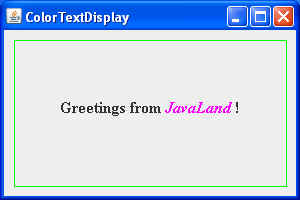
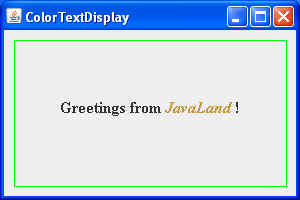
Or, we can specify the color to be used, via its red, green and blue components, by replacing the line:
g.setColor(Color.MAGENTA);
with:
g.setColor( new Color(200, 150, 50) ); // red, green, blue
to produce:
Background Color
We can set the background color, too, by calling the setBackground method:
package swingExamples;

import java.awt.Color;
import java.awt.Container;
import java.awt.Dimension;
import java.awt.Font;
import java.awt.FontMetrics;
import java.awt.Graphics;
import java.awt.Insets;

import javax.swing.JFrame;
import javax.swing.JPanel;

class BackgroundColorDisplayPanel extends JPanel
{
  public BackgroundColorDisplayPanel()
  {
    setBackground(Color.yellow);
  }
}

class BackgroundColorDisplayFrame extends JFrame
{
  public BackgroundColorDisplayFrame()
  {
    setTitle("Background Color Display");
    setSize(300, 200);
    setDefaultCloseOperation(EXIT_ON_CLOSE);
    Container contentPane = getContentPane();
    contentPane.add(new BackgroundColorDisplayPanel());
  }
}

public class BackgroundColorDisplay
{
  public static void main(String[] args)
  {
    BackgroundColorDisplayFrame frame =
        new BackgroundColorDisplayFrame();
    frame.setVisible(true);
  }
}
which produces:
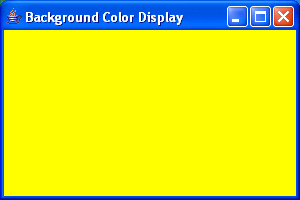
Note that, in the above program, we set the background color for the BackgroundColorDisplayPanel class, not for the BackgroundColorDisplayFrame class.
Why?
System Colors
Java also provides a set of colors based on your system’s current set of GUI colors. Access to these colors is provided via the SystemColor class.
Here’s what I get when I display those colors on my home Windows system, which I run with the default Windows style and default color scheme:
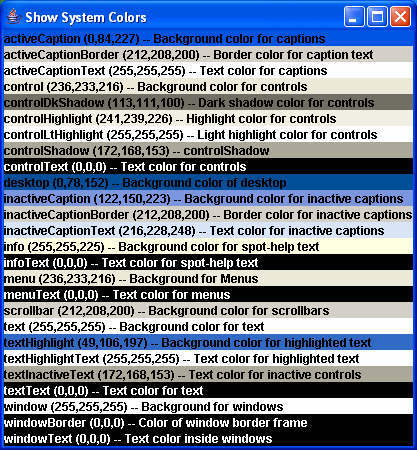
When I switch the Windows color scheme to Olive Green, and run the above program again, it gives me:

Note that the SystemColor class extends from the Color class.
In addition, note that the uppercase versions of the names for these system colors are not synonymous with the lowercase versions:
- Lowercase names refer to an instance of
SystemColor - Uppercase names provide an integer value, which is an index into an array of
SystemColors contained within theSystemColorclass