|
| |
We've seen with the Beans we've implemented so far, that
only some properties can be displayed and/or modified from
within a builder tool such as the BeanBox. If the type of the
property is simple such as a primitive type, or common object
types, such as Font or Color, then the BeanBox supplies the
appropriate mechanism for displaying and modifying a property
of that type. However, if the type of the property is not in
one of these classes, or if it is an indexed property, the
BeanBox ignores the property, and outputs text telling you
that it's skipping that property:
...
Warning: Can't find public property editor for property "preferredSize".  Skipping.
Warning: Can't find public property editor for property "plotBounds".  Skipping.
But that isn't very helpful. What if we want to be able to
display or change that property in a builder tool? We have to
provide the support for that ourselves, by following a set of
rules. We provide that support by supplying a class that
implements the PropertyEditor
interface.
The PropertyEditor Interface
A class that implements the PropertyEditor
interface provides support for GUIs that want to allow users
to edit a property value of a given type. PropertyEditor
supports a variety of different kinds of ways of displaying
and updating property values. Most PropertyEditors
will only need to support a subset of the different options
available in this API.
Simple PropertyEditors
may only support the getAsText
and setAsText methods and
need not support (say) paintValue
or getCustomEditor. More
complex types may be unable to support getAsText and setAsText but will instead support paintValue and getCustomEditor.
Every PropertyEditor
class must support one or more of the three simple display
styles. Thus it can either
- Support isPaintable(),
or
- Both return a non-null String[]
from getTags() and
return a non-null value from getAsText(),
or
- Simply return a non-null String
from getAsText().
Every property editor must support a call on setValue when the argument object
is of the type for which this is the corresponding PropertyEditor. In
addition, each property editor must either support a custom
editor, or support setAsText.
Each PropertyEditor
should have a null (no-argument) constructor.
The PropertyEditor
interface requires the following methods:
| Method |
Description |
public
void addPropertyChangeListener(
PropertyChangeListener
listener) |
Registers a listener for the
PropertyChange event. When a PropertyEditor changes
its value it should fire a PropertyChange event on
all registered PropertyChangeListeners, specifying
the null value for
the property name and itself as the source. |
| public
String getAsText() |
Returns the property value as a
human editable string.
Returns null if the
value can't be expressed as an editable string.
If a non-null value
is returned, then the PropertyEditor should be
prepared to parse that string back in setAsText(). |
| public
Component getCustomEditor() |
A PropertyEditor may choose to make
available a full custom Component that edits its
property value. It is the responsibility of the
PropertyEditor to hook itself up to its editor
Component itself and to report property value changes
by firing a PropertyChange event.
The higher-level code that calls getCustomEditor may
either embed the Component in some larger property
sheet, or it may put it in its own individual dialog,
or ...
Returns a java.awt.Component that will allow a human
to directly edit the current property value. May be null if this is not
supported. |
| public
String getJavaInitializationString() |
This method is intended for use when
generating Java code to set the value of the
property. It should return a fragment of Java code
that can be used to initialize a variable with the
current property value.
Example results are "2", "new
Color(127,127,34)", "Color.orange",
etc. |
| public
String[] getTags() |
If the property value must be one of
a set of known tagged values, then this method should
return an array of the tags. This can be used to
represent (for example) enum
values. If a PropertyEditor supports tags, then it
should support the use of setAsText with a tag value
as a way of setting the value and the use of
getAsText to identify the current value.
Returns an array of Strings containing the tag values
for this property. May be null
if this property cannot be represented as a tagged
value.
|
| public
Object getValue() |
Returns the value of the property.
Primitive types such as int
will be wrapped as the corresponding object type such
as "java.lang.Integer". |
| public
boolean isPaintable() |
Returns true
if the class will honor the paintValue method, false otherwise. |
| public
void paintValue(Graphics gfx, Rectangle box) |
Paint a representation of the value
into a given area of screen real estate. Note that
the propertyEditor is responsible for doing its own
clipping so that it fits into the given rectangle.
If the PropertyEditor doesn't honor paint requests
(see isPaintable) this method should be a silent
noop.
The given Graphics object will have the default font,
color, etc of the parent container. The
PropertyEditor may change graphics attributes such as
font and color and doesn't need to restore the old
values. |
public
void removePropertyChangeListener(
PropertyChangeListener listener) |
Removes a listener for the
PropertyChange event. |
| public
void setAsText(String text) throws
IllegalArgumentException |
Sets the property value by parsing a
given String. May raise
java.lang.IllegalArgumentException if either the
String is badly formatted or if this kind of property
can't be expressed as text. |
| public
void setValue(Object value) |
Set (or change) the object that is
to be edited. Primitive types such as int must be wrapped as the
corresponding object type such as
"java.lang.Integer".
The parameter value
is the new target object to be edited. Note
that this object should not be modified by the
PropertyEditor, rather the PropertyEditor should
create a new object to hold any modified value. |
| public
boolean supportsCustomEditor() |
Returns true
if the propertyEditor can provide a custom editor, false otherwise. |
Techniques for Displaying and Changing a Property Value
As discussed above, the PropertyEditor interface provides
support for three techniques for displaying the value of a
property, and two techniques for allowing the user to edit
the value of a property. The value of a property can be
displayed:
- As a string. If you implement the getAsText() method,
the property value can be converted into a String,
and can then be displayed as text in the Bean's
properties.
- As an enumerated value. If the property may only take
on one of a fixed set of values, you can implement
the getTags() method to allow the BeanBox to use a
drop-down menu of those values.
- In a graphical display. If you implement
paintValue(), the BeanBox can ask the property editor
to display the value using some graphical format
within the entry in the Bean's properties. You must
also implement isPaintable() to return true, to
specify that the BeanBox should use the paintValue()
method.
The two techniques for editing the value of a property
are:
- String editing. If you implement setAsText(), the
BeanBox can simply have the user enter a value
directly in the bean's properties sheet. If your
property editor implements getTags(), then it should
also implement setAsText() so that the BeanBox can
set the property value using one of the allowed tag
values.
- Custom editing. If your property editor implements
getCustomEditor(), the BeanBox can call that custom
editor to obtain an AWT Component that can be
displayed in a dialog box. The Component serves as
the custom editor for that property.
The PropertyEditorSupport
Class
As we have seen a number of times before, there is a
convenience class to simplify how we construct a
PropertyEditor -- PropertyEditorSupport,
which we subclass to create a custom PropertyEditor.
PropertyEditorSupport
implements the PropertyEditor interface, and provides a set
of methods which may be overridden in its subclasses.
PropertyEditorSupport
provides the following methods, in addition to those required
by the PropertyEditor interface:
| Method |
Description |
protected
PropertyEditorSupport(Object source)
|
Constructor for use when a
PropertyEditor is delegating to us.
The source parameter
is the source to use for any events we fire. |
| protected
PropertyEditorSupport() |
Constructor for use by derived
PropertyEditor classes. |
| public
void firePropertyChange() |
Fires a PropertyChange event to
report to any interested listeners that we have been
modified. |
What the BeanBox Does
During its introspection of a Bean, the BeanBox does the
following:
- It obtains the PropertyDescriptors
from the BeanInfo
(either a BeanInfo class that you supply, or, if you
don't supply one, it creates a BeanInfo class
automatically for you)
- For each PropertyDescriptor,
it calls that descriptor's getPropertyEditor
method.
- If this returns a specific property editor,
then it is used.
- If it returns a null, then it attempts to
find an existing registered editor for that
property's type. If it finds one, it uses it.
- If it does not find a registered editor for
the property's type, it looks for a class
whose name is <TypeName>Editor.
If it finds such a class, it uses it.
- Otherwise, it will not display that property.
Creating a PropertyEditor for an Enumerated Property Type
Creating a property editor that supports an enumerated
type is an example of a simple property editor. We'll use a
new version of the previous SimpleScatterPlot Bean as an
example.
Creating a New SimpleScatterPlot
Bean
Let's look at our earlier example of the SimpleScatterPlot
Bean:
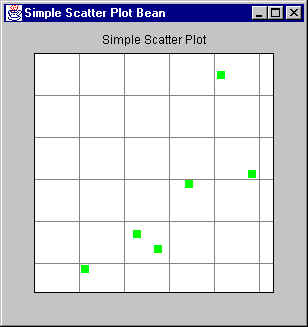 |
Let's change it to allow the user to specify how
the points are displayed on the plot. We'll do this
by providing an abstraction interface, PlotType,
which externalizes the way the plotting is done. That
is, the code that does the drawing of the point is
moved outside of the SimpleScatterPlot
class, and the PlotType
interface provides a standard interface which
different classes may implement in different ways to
plot a point differently.
|
Here's the PlotType
interface:
package javaBeans;

import java.awt.Color;
import java.awt.Graphics;

/**
*   PlotType interface.
*
*   A class that implements this interface implements a specific
*   way of drawing a point into Graphics g at position (x, y),
*   together with a label, if desired/supported.
*
*   @author Bryan J. Higgs, 10 April, 2000
*/
public interface PlotType
{
    /**
    *   Draws a "spot" in Graphics g, at point (x,y), with label.
    */
    public void drawSpot(Graphics g, int x, int y, String label);

    /**
    *   Gets the current color that will be used to draw spots.
    */
    public Color getColor();

    /**
    *   Set the color that will be used to draw spots.
    */
    public void setColor(Color color);

    /**
    *   Gets the PlotType implementation's display name.
    */
    public String getDisplayName();
} |
True to the model we've been observing for some time how,
I've provided a SimplePlotType
class. It implements the getColor
and setColor methods, but
does not implement anything else, and so is an abstract
class:
package javaBeans;

import java.awt.Color;
import java.awt.Graphics;

/**
*   An abstract class that implements PlotType, to simplify creation
*   of PlotType implementations.
*
*   @author Bryan J. Higgs, 10 April, 2000
*/
public abstract class SimplePlotType implements PlotType
{
    /**
    *   Draws a "spot" in Graphics g, at point (x,y), with label.
    */
    public abstract void drawSpot(Graphics g, int x, int y, String label);

    /**
    *   Gets the current color that will be used to draw spots.
    */
    public Color getColor()
    {
        return m_color;
    }

    /**
    *   Set the color that will be used to draw spots.
    */
    public void setColor(Color color)
    {
        m_color = color;
    }

    //// Private Data ////
    private Color   m_color = Color.green;  // The default color
} |
and here are three implementations of PlotType:
package javaBeans;

import java.awt.Graphics;

/**
*   Class that implements the PlotType interface to draw a
*   simple unadorned box of the specified color, and no label.
*
*   @author Bryan J. Higgs, 10 April, 2000
*/
public class PTBox extends SimplePlotType
{
    /**
    *   Draws a "spot" in Graphics g, at point (x,y), with label.
    */
    public void drawSpot(Graphics g, int x, int y, String label)
    {
        g.setColor(getColor());
        g.fillRect(x-4, y-4, 8, 8);
    }

    /**
    *   Gets the PlotType implementation's display name.
    */
    public String getDisplayName()
    {
        return "Box";
    }
} |
package javaBeans;

import java.awt.Color;
import java.awt.Graphics;

/**
*   Class that implements the PlotType interface to draw a
*   triangle of the specified color, with a black surround,
*   and (if requested) a label.
*
*   @author Bryan J. Higgs, 10 April, 2000
*/
public class PTTriangle extends SimplePlotType
{
    /**
    *   Draws a "spot" in Graphics g, at point (x,y), with label.
    */
    public void drawSpot(Graphics g, int x, int y, String label)
    {
        int xPoints[] = { x-5, x, x+5, x-5 };
        int yPoints[] = { y, y+10, y, y };

        g.setColor(getColor());
        g.fillPolygon(xPoints, yPoints, 4);
        g.setColor(Color.black);
        g.drawPolygon(xPoints, yPoints, 4);

        if (label != null)
        {
            g.drawString(label, x-8, y+20);
        }
    }

    /**
    *   Gets the PlotType implementation's display name.
    */
    public String getDisplayName()
    {
        return "Triangle";
    }
} |
package javaBeans;

import java.awt.Color;
import java.awt.Graphics;

/**
*   Class that implements the PlotType interface to draw a
*   "happy face" of the specified color, and a label.
*
*   @author Bryan J. Higgs, 10 April, 2000
*/
public class PTHappy extends SimplePlotType
{
    /**
    *   Draws a "spot" in Graphics g, at point (x,y), with label.
    */
    public void drawSpot(Graphics g, int x, int y, String label)
    {
        g.setColor(getColor());
        g.fillOval(x - 12, y - 12, 24, 24);
        g.setColor(Color.black);
        g.drawOval(x-12, y-12, 24, 24);
        g.drawArc(x-8, y-8, 16, 16, 200, 140);
        g.fillOval(x-6, y-6, 4, 4);
        g.fillOval(x+2, y-6, 4, 4);

        if (label != null)
        {
            g.drawString(label, x-20, y+10);
        }
    }

    /**
    *   Gets the PlotType implementation's display name.
    */
    public String getDisplayName()
    {
        return "Happy Face";
    }
} |
Given the above, and with a number of other changes to the
implementation, here's a new version of the SimpleScatterPlot
class. Note that I've highlighted where the PlotType is used
to draw a point in the scatter plot:
package javaBeans;

import java.awt.Canvas;
import java.awt.Color;
import java.awt.Dimension;
import java.awt.Graphics;
import java.awt.Point;
import java.awt.Rectangle;

/**
 *  A class that implements a simple scatter plot Java Bean.
 *
 *  @author Bryan J. Higgs, 6 April 2000
 */
public class SimpleScatterPlot extends Canvas
{
    /**
    *   Constructor
    */
    public SimpleScatterPlot()
    {
        m_title = "Simple Scatter Plot";
        setBackground(Color.lightGray);
    }

    //// Set/get properties ////

    /**
    *   Gets the array of points being displayed.
    */
    public Point[] getPoints()
    {
        return m_points;
    }

    /**
    *   Sets the array of points to be displayed.
    *   Causes the display to be automatically refreshed.
    */
    public void setPoints(Point[] points)
    {
        m_points = points;
        m_autoRangingDone = false;
        repaint();
    }

    /**
    *   Gets the i-th (0-based) point.
    *   @return the Point
    *   @exception ArrayIndexOutOfBoundsException if i is out of range
    */
    public Point getPoints(int i)
    {
        return m_points[i];
    }

    /**
    *   Sets the i-th (0-based) point.
    *   @param i the index at which to set the Point
    *   @param p the Point to set at that index; if null, the point
    *            no action is taken (to prevent creating a sparse array)
    */
    public void setPoints(int i, Point p)
    {
        if (p != null)
        {
            m_points[i] = p;

            m_autoRangingDone = false;
            repaint();
        }
    }

    /*
    *   Gets the number of points currently being displayed.
    */
    public int getPointCount()
    {
        return m_points.length;
    }

    /**
    *   Gets the PlotType implementation.
    */
    public PlotType getPlotType()
    {
        return m_plotType;
    }

    /**
    *   Sets the PlotType implementation.
    */
    public void setPlotType(PlotType ps)
    {
        m_plotType = ps;
        repaint();
    }

    /**
    *   Gets the scatter plot title.
    */
    public String getTitle()
    {
        return m_title;
    }

    /**
    *   Sets the scatter plot title.
    *   Refreshes the display.
    */
    public void setTitle(String title)
    {
        m_title = title;
        repaint();
    }

    /**
    *   Gets the current title text color.
    */
    public Color getTitleColor()
    {
        return m_titleColor;
    }

    /**
    *   Sets the title text color.
    *   Refreshes the display.
    */
    public void setTitleColor(Color color)
    {
        m_titleColor = color;
        repaint();
    }

    /**
    *   Gets the current plot background color.
    */
    public Color getPlotBackColor()
    {
        return m_plotBackColor;
    }

    /**
    *   Sets the plot background color.
    *   Refreshes the display.
    */
    public void setPlotBackColor(Color color)
    {
        m_plotBackColor = color;
        repaint();
    }

    /**
    *   Gets the current point display color.
    */
    public Color getPointColor()
    {
        Color color = DEFAULT_POINT_COLOR;  // Default if no PlotType
        if (m_plotType != null)
            color = m_plotType.getColor();
        return color;
    }

    /**
    *   Sets the point display color.
    */
    public void setPointColor(Color color)
    {
        if (m_plotType != null)
        {
            m_plotType.setColor(color);
            repaint();
        }
    }

    /**
    *   Gets the current grid color.
    */
    public Color getGridColor()
    {
        return m_gridColor;
    }

    /**
    *   Sets the grid color.
    *   Refreshes the display.
    */
    public void setGridColor(Color color)
    {
        m_gridColor = color;
        repaint();
    }

    /**
    *   Gets the current plot bounds.
    */
    public PlotBounds getPlotBounds()
    {
        return m_bounds;
    }

    /**
    *   Sets the plot bounds.
    *   Refreshes the display.
    */
    public void setPlotBounds(PlotBounds bounds)
    {
        m_bounds = bounds;
        m_autoRangingDone = false;
        repaint();
    }

    /**
    *   Gets the current grid tic X value.
    */
    public int getXTic()
    {
        return m_xTic;
    }

    /**
    *   Sets the the grid tic X value
    *   Refreshes the display.
    */
    public void setXTic(int xTic)
    {
        m_xTic = xTic;
        m_autoRangingDone = false;
        repaint();
    }

    /**
    *   Gets the current grid tic Y value.
    */
    public int getYTic()
    {
        return m_yTic;
    }

    /**
    *   Sets the the grid tic Y value
    *   Refreshes the display.
    */
    public void setYTic(int yTic)
    {
        m_yTic = yTic;
        m_autoRangingDone = false;
        repaint();
    }

    /**
    *   Gets whether autoranging is turned on for the x direction.
    */
    public boolean isAutoRangeX()
    {
        return m_autoRangeX;
    }

    /**
    *   Sets autoranging on or off for the x direction.
    *   Refreshes the display.
    */
    public void setAutoRangeX(boolean autoRangeX)
    {
        m_autoRangeX = autoRangeX;
        m_autoRangingDone = false;
        repaint();
    }

    /**
    *   Gets whether autoranging is turned on for the y direction.
    */
    public boolean isAutoRangeY()
    {
        return m_autoRangeY;
    }

    /**
    *   Sets autoranging on or off for the y direction.
    *   Refreshes the display.
    */
    public void setAutoRangeY(boolean autoRangeY)
    {
        m_autoRangeY = autoRangeY;
        m_autoRangingDone = false;
        repaint();
    }

    /**
    *   Gets whether the gird should be shown.
    */
    public boolean isShowGrid()
    {
        return m_showGrid;
    }

    /**
    *   Sets the display of the grid on or off.
    *   Refreshes the display.
    */
    public void setShowGrid(boolean showGrid)
    {
        m_showGrid = showGrid;
        repaint();
    }

    /**
    *   Sets the preferred size for the scatter plot canvas.
    */
    public Dimension getPreferredSize()
    {
        if (m_preferredSize == null)
            m_preferredSize = new Dimension(300, 300);
        return m_preferredSize;
    }

    /**
    *   Sets the preferred size for the scatter plot canvas.
    *   Refreshes the display.
    */
    public void setPreferredSize(Dimension d)
    {
        m_preferredSize = d;
        repaint();
    }

    /**
    *   Paints the scatter plot canvas.
    */
    public void paint(Graphics g)
    {
        // Get information necessary to paint
        Dimension size = getSize();
        int width = size.width;
        int height = size.height;

        paintTitle(g, width, height);

        autoRange();

        // Create a new clipped area to draw the actual plot into.
        Graphics area =
                g.create((int)((width/10.0)+0.5),
                            (int)((height/10.0)+0.5),
                            (int)((width * 8.0 / 10.0) + 0.5),
                            (int)((height * 8.0 / 10.0) + 0.5)
                        );

        plotPoints(area);

        if (isShowGrid())
            paintGrid(area);

        // Draw rectangle around the plot
        Rectangle rect = area.getClipBounds();
        area.setColor(Color.black);
        area.drawRect(0, 0,  rect.width-1, rect.height-1);
    }

    //// Protected methods ////

    /**
    *   Paints the title text.
    */
    protected void paintTitle(Graphics g, int width, int height)
    {
        // Baseline at 7% from top
        int baseline = height * 7 / 100;
        int titleWidth = getFontMetrics(getFont()).stringWidth(m_title);
        int xStart = (width - titleWidth) / 2;

        if (xStart < 0)
            xStart = 0;

        g.setColor(m_titleColor);
        g.drawString(m_title, xStart, baseline);
    }

    /**
    *   Determines and sets the bounds from the set of points being displayed.
    */
    protected void autoRange()
    {
        // If there are points, and we're autoranging, do the work...
        // (If autoranging has already been done, don't bother doing it again.)
        if (getPointCount() > 0 &&
            !m_autoRangingDone && (m_autoRangeX || m_autoRangeY))
        {
            Point point = m_points[0];
            if (m_autoRangeX)
            {
                m_bounds.setXMin(point.x);
                m_bounds.setXMax(point.x);
            }
            if (m_autoRangeY)
            {
                m_bounds.setYMin(point.y);
                m_bounds.setYMax(point.y);
            }
            for (int i = 1; i < getPointCount(); i++)
            {
                point = m_points[i];
                if (m_autoRangeX)
                {
                    if (point.x < m_bounds.getXMin())
                        m_bounds.setXMin(point.x);
                    if (point.x > m_bounds.getXMax())
                        m_bounds.setXMax(point.x);
                }
                if (m_autoRangeY)
                {
                    if (point.y < m_bounds.getYMin())
                        m_bounds.setYMin(point.y);
                    if (point.y > m_bounds.getYMax())
                        m_bounds.setYMax(point.y);
                }
            }

            m_autoRangingDone = true;   // Done for this pass
        }
    }

    /**
    *   Plots the points on the scatter plot.
    */
    protected void plotPoints(Graphics g)
    {
        Rectangle rect = g.getClipBounds();

        // Set window for graphics
        int height = rect.height;
        int width = rect.width;

        // Fill background
        g.setColor(m_plotBackColor);
        g.fillRect(0, 0, width-1, height-1);

        int pointCount = getPointCount();
        int barwidth = (pointCount > 0) ? (width / pointCount): 0;

        Point point;
        for (int i = 0; i < pointCount; i++)
        {
            point = m_points[i];

            // Figure out where the point goes.
            // If autoscaling is on along one axis, we extend
            // the scale by 10% so points don't end up
            // being cut off by the graph edges.
            double dxExpand = m_autoRangeX ? 1.1 : 1.0;
            int x = (int)(width * point.x / (m_bounds.getXMax() * dxExpand));

            double dyExpand = m_autoRangeY ? 1.1 : 1.0;
            int y = height -
                  (int)(height * point.y / (m_bounds.getYMax() * dyExpand));

            // If the plotType is set, use it.
            if (m_plotType != null)
            {
                // Create a "title" for the point
                String ss = m_numberPoint ? Integer.toString(i) : null;
                // Delegate the drawing to the plotType implementation
                m_plotType.drawSpot(g, x, y, ss);
            }
            else
            {
                // Otherwise just draw bars
                g.setColor(getPointColor());
                g.fillRect(i * barwidth, height - y, barwidth, y);
            }
        }
    }

    /**
    *   Paints the scatter plot grid.
    */
    protected void paintGrid(Graphics g)
    {
        Rectangle rect = g.getClipBounds();
        if (!m_showGrid)
            return;

        // Set window for graphics
        int height = rect.height;
        int width = rect.width;

        if (m_xTic == 0)
            m_xTic = ((m_bounds.getXMax() - m_bounds.getXMin()) / 5);
        if (m_xTic == 0)
            m_xTic = 10;

        if (m_yTic == 0)
            m_yTic = ((m_bounds.getYMax() - m_bounds.getYMin()) / 5);
        if (m_yTic == 0)
            m_yTic = 10;

        g.setColor(m_gridColor);

        // Draw x grid lines
        int xRange = m_bounds.getXMax() - m_bounds.getXMin();
        if (xRange == 0)
            xRange = 100;
        double xPixPerUnit = width/xRange;

        for (int xval = 0; xval <= m_bounds.getXMax(); xval += m_xTic)
        {
            int xpos = (int)(xval * xPixPerUnit);
            g.drawLine(xpos, 0, xpos, height);
        }

        // Draw y grid lines
        int yRange = m_bounds.getYMax() - m_bounds.getYMin();
        if (yRange == 0)
            yRange = 100;
        double yPixPerUnit = height/yRange;

        for (int yval = 0; yval <= m_bounds.getYMax(); yval += m_yTic)
        {
            int ypos = (int)(yval * yPixPerUnit);
            g.drawLine(0, ypos, width, ypos);
        }
    }

    //// Private data ////

    private String      m_title;
    private Point[]     m_points = new Point[0];
    private PlotBounds  m_bounds = new PlotBounds(0, 0, 0, 0);
    private boolean     m_showGrid = true;
    private boolean     m_autoRangeY = true;
    private boolean     m_autoRangeX = true;

    private Color       m_titleColor = Color.black;
    private Color       m_plotBackColor = Color.white;
    private Color       m_gridColor = Color.gray;
    private PlotType    m_plotType = new PTBox();// Default plotType
    private boolean     m_numberPoint = true;

    private final Color DEFAULT_POINT_COLOR = Color.green;

    private int         m_xTic = 0;
    private int         m_yTic = 0;

    private Dimension   m_preferredSize;
    private boolean     m_autoRangingDone = false;
} |
Creating a PropertyEditor for PlotType
Now, if we just have the above implementation, and nothing
else, we'll get a number of messages from the BeanBox saying
that it can't find a PropertyEditor for a number of
SimpleScatterPlot's properties, including the plotType property.
So let's implement a PropertyEditor for the PlotType type.
We'll follow the naming conventions and call it PlotTypeEditor:
package javaBeans;

import java.beans.PropertyChangeListener;
import java.beans.PropertyEditorSupport;

/**
*   PlotTypeEditor -- a Java Beans property editor for PlotType.
*
*   @author Bryan J. Higgs, 10 April, 2000
*/
public class PlotTypeEditor extends PropertyEditorSupport
{
    /**
    *   Returns valid tag names for the set of PlotType implementations.
    *   (It obtains the tag name as the displayName for each of the
    *   implementations.)
    */
    public String[] getTags()
    {
        String[] typeChoicesText = new String[m_typeChoices.length];
        for (int i = 0; i < typeChoicesText.length; i++)
            typeChoicesText[i] = m_typeChoices[i].getDisplayName();
        return typeChoicesText;
    }

    /**
    *   Given the name of a PlotType, set the value of the
    *   object we're editing, which fires a property change event
    *   at the associated bean.
    */
    public void setAsText(String name)
    {
        for (int i = 0; i < m_typeChoices.length; i++)
        {
            if ( name.equals(m_typeChoices[i].getDisplayName()) )
            {
                setValue(m_currentPlotType = m_typeChoices[i]);
                                    // Note: This fires a property change
                break;
            }
        }
    }

    /**
    *   Get the name of the PlotType being edited
    */
    public String getAsText()
    {
        return m_currentPlotType.getDisplayName();
    }

    //// Private data ////

    /**
    *   The currently available set of PlotType implementations.
    */
    private static PlotType[] m_typeChoices =
    {
        new PTBox(),
        new PTTriangle(),
        new PTHappy()
    };

    /*
    *   The current PlotType implementation in use.
    */
    private PlotType m_currentPlotType = m_typeChoices[0];
}
|
Take note not only of what I implemented, but also of what
I did not implement, in the above class.
Registering the PlotTypeEditor
In order to cause the BeanBox to make use of this
PlotTypeEditor, we now create a SimpleScatterPlotBeanInfo
class, which registers the PlotTypeEditor for the PlotType:
package javaBeans;

import java.awt.Point;

import java.beans.BeanDescriptor;
import java.beans.PropertyEditorManager;
import java.beans.SimpleBeanInfo;

/**
*   BeanInfo class for SimpleScatterPlot.
*
*   @author Bryan J. Higgs, 10 April, 2000
*/
public class SimpleScatterPlotBeanInfo extends SimpleBeanInfo
{
    /**
    *   Gets the BeanDescriptor for the SimpleScatterPlot Bean.
    */
    public BeanDescriptor getBeanDescriptor()
    {
        // Register some property editors
        PropertyEditorManager.registerEditor(PlotType.class,
                                             PlotTypeEditor.class);

        // Create bean descriptor
        BeanDescriptor desc = new BeanDescriptor(SimpleScatterPlot.class);
        desc.setShortDescription("Simple Scatter Plot");
        desc.setDisplayName("SimpleScatterPlot");

        return desc;
    }
} |
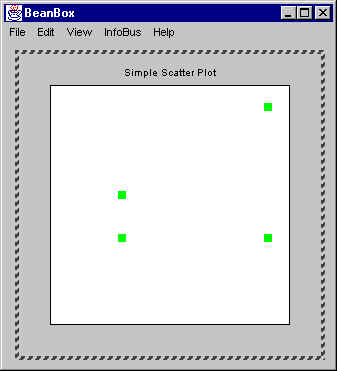
The Results
Finally, we package up all these classes and interfaces
together into a JAR file, and import the Jar file into the
BeanBox. Then, when we create a SimpleScatterPlot in the
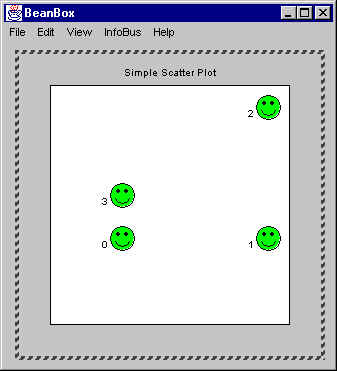
BeanBox, we get a display something like (I added some
points, so we can see the effect of changing the plotType):
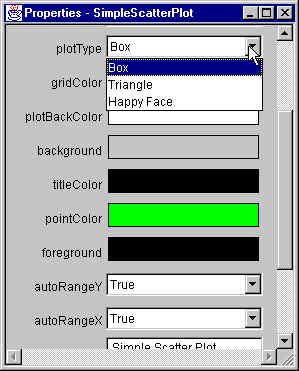
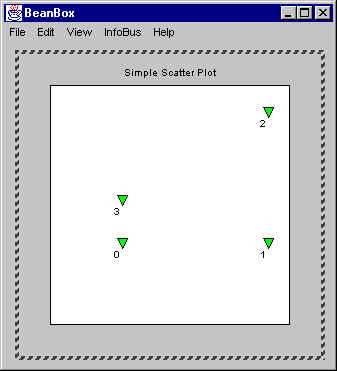
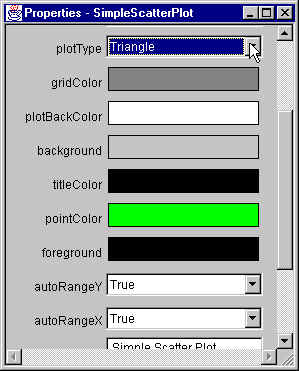
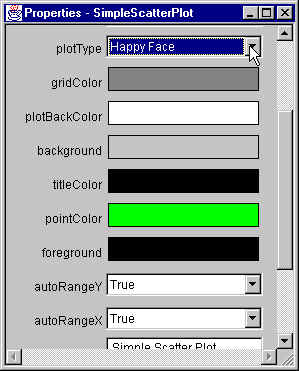
As you can see, the plotType property is now displayed as
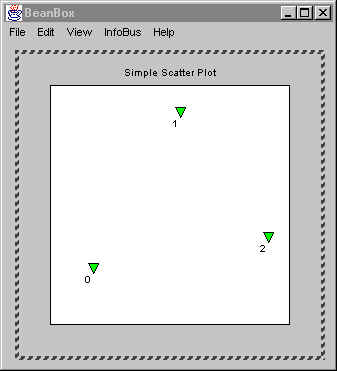
a choice of Box, Triangle, or Happy Face. If we change the
selection, the plot changes appropriately:
Creating a PropertyEditor for a More Complex Property Type
Now let's create another PropertyEditor -- this one to
support the PlotBounds property type. The plotBounds property
was another of SimpleScatterPlot's properties that wasn't
displayed in the BeanBox's property sheet. But the PlotBounds
type isn't representable as an enumerated type. Instead, it
encapsulates the minimum and maximum X and Y values that
define the bounds of the scatter plot.
Creating the PlotBoundsEditor
For the PlotBounds type, there is no obvious text
equivalent (at least nothing that would look good to users),
and there is no obvious existing property editor that seems
adequate. So we'll have to implement a custom editor.
Here's the PlotBoundsEditor
implementation:
package javaBeans;

import java.awt.Color;
import java.awt.Component;
import java.awt.FontMetrics;
import java.awt.Graphics;
import java.awt.Rectangle;

import java.beans.PropertyEditorSupport;

/**
*   PlotBoundsEditor -- a Java Beans property editor for PlotBounds.
*
*   @author Bryan J. Higgs, 10 April, 2000
*/
public class PlotBoundsEditor extends PropertyEditorSupport
{
    /**
    *   Returns true, to indicate that we have a custom editor.
    */
    public boolean supportsCustomEditor()
    {
        return true;
    }

    /**
    *   Returns the custom editor for this type
    */
    public Component getCustomEditor()
    {
        return new PlotBoundsEditorPanel(this);
    }

    /**
    *   Returns true, indicating that we wish to control
    *   how this property is displayed in the properties sheet.
    */
    public boolean isPaintable()
    {
        return true;
    }

    /**
    *   Does the display of the entry in the properties sheet.
    */
    public void paintValue(Graphics g, Rectangle box)
    {
        PlotBounds bounds = (PlotBounds) getValue();
        String s = "MinXY[" + bounds.getXMin() + "," +
                              bounds.getYMin() + "] " +
                   "MaxXY[" + bounds.getXMax() + "," +
                              bounds.getYMax() + "]";

        g.setColor(Color.white);
        g.fillRect(box.x, box.y, box.width, box.height);
        g.setColor(Color.black);
        FontMetrics fm = g.getFontMetrics();
        int width = fm.stringWidth(s);
        int x = box.x;
        if (width < box.width)
            x += (box.width - width)/2;
        int y = box.y + (box.height - fm.getHeight())/2
                    + fm.getAscent();
        g.drawString(s, x, y);
    }

    /**
    *   Return false, indicating that there is no text equivalent.
    */
    public String getAsText()
    {
        return null;
    }
} |
Note that it implements paintValue()
to provide a display of the property value, and that it also
implements the supportsCustomEditor()
method, and the getCustomEditor()
method. The latter returns an instance of PlotBoundsEditorPanel,
which implements the GUI for the property editor. Here's the PlotBoundsEditorPanel
class:
package javaBeans;

import java.awt.BorderLayout;
import java.awt.Button;
import java.awt.GridLayout;
import java.awt.Label;
import java.awt.Panel;
import java.awt.TextField;
import java.awt.event.ActionEvent;
import java.awt.event.ActionListener;
import java.awt.event.FocusAdapter;
import java.awt.event.FocusEvent;

import java.beans.PropertyEditorSupport;

/**
*   PlotBoundsEditorPanel -- the custom editor GUI for
*   the PlotBoundsEditor property editor.
*
*   @author Bryan J. Higgs, 10 April, 2000
*/
public class PlotBoundsEditorPanel extends Panel
{
    /**
    *   Constructor
    */
    public PlotBoundsEditorPanel(PropertyEditorSupport ed)
    {
        m_editor = ed;
        m_bounds = (PlotBounds)m_editor.getValue();

        setLayout( new BorderLayout() );
        add( createMinMaxPanel(), BorderLayout.CENTER );
        add( createChangePanel(), BorderLayout.SOUTH );
    }

    /**
    *   Creates a panel to contain the labels and text fields
    *   for user input.
    */
    private Panel createMinMaxPanel()
    {
        Panel p = new Panel( new GridLayout(2, 2) );
        // Lay out the panel
        p.add( new Label("X Min: ", Label.RIGHT) );
        p.add( m_xMin );
        p.add( new Label("Y Min: ", Label.RIGHT) );
        p.add( m_yMin );
        p.add( new Label("X Max: ", Label.RIGHT) );
        p.add( m_xMax );
        p.add( new Label("Y Max: ", Label.RIGHT) );
        p.add( m_yMax );
        // Set the values into the fields
        m_xMin.setValue(m_bounds.getXMin());
        m_yMin.setValue(m_bounds.getYMin());
        m_xMax.setValue(m_bounds.getXMax());
        m_yMax.setValue(m_bounds.getYMax());

        // Add a focus listener to each input field
        // so that we can cause the Change button to be
        // enabled or disabled, as appropriate.
        BoundsChangeChecker checker = new BoundsChangeChecker();
        m_xMin.addFocusListener(checker);
        m_xMin.addFocusListener(checker);
        m_yMin.addFocusListener(checker);
        m_xMax.addFocusListener(checker);
        m_yMax.addFocusListener(checker);

        return p;
    }

    /**
    *   Create a panel for the Change button
    */
    private Panel createChangePanel()
    {
        Panel p = new Panel();
        // Lay out the panel
        p.add( m_changeButton );
        // Set the button initially disabled
        // (it will only be enabled if we detect a change.)
        m_changeButton.setEnabled(false);

        // Add an action listener for when we push the button.
        m_changeButton.addActionListener( new ActionListener()
            {
                public void actionPerformed(ActionEvent ev)
                {
                    changeBounds();
                }
            }
        );
        return p;
    }

    /**
    *   Cause the bean's bounds to be changed
    */
    private void changeBounds()
    {
        // Set the new bounds value in the associated bean
        // via its property editor.
        m_editor.setValue(m_bounds);
    }

    /**
    *   Inner class shared between the input fields as a
    *   focus listener.
    */
    class BoundsChangeChecker extends FocusAdapter
    {
        public void focusLost(FocusEvent e)
        {
            // When leaving a field, test to see whether there
            // have been any changes in the bounds, as a result
            // of user input.
            PlotBounds bounds = new PlotBounds(m_xMin.getValue(),
                                               m_yMin.getValue(),
                                               m_xMax.getValue(),
                                               m_yMax.getValue()
                                              );
            // Set the button enabled or disabled, as appropriate.
            boolean changed = !bounds.equals(m_bounds);
            m_changeButton.setEnabled(changed);
            // If there was a change, capture the new bounds
            if (changed)
                m_bounds = bounds;
        }
    }

    //// Private Data ////
    private PropertyEditorSupport   m_editor;   // The associated editor

    private PlotBounds  m_bounds;
    private IntBox      m_xMin = new IntBox(5); // Integer textfield
    private IntBox      m_yMin = new IntBox(5);
    private IntBox      m_xMax = new IntBox(5);
    private IntBox      m_yMax = new IntBox(5);
    private Button      m_changeButton = new Button("Change");
} |
Note that the PlotBoundsEditorPanel
class uses a modified version of the IntBox
class. IntBox
was modified to allow positive or negative integers to be
input:
package javaBeans;

import java.awt.TextField;
import java.awt.event.KeyEvent;

import java.beans.PropertyChangeListener;
import java.beans.PropertyChangeSupport;
import java.beans.VetoableChangeListener;
import java.beans.VetoableChangeSupport;
import java.beans.PropertyVetoException;

/**
*   An IntBox Bean is a TextField that only accepts
*   positive or negative integers.
*
*   @author Bryan J. Higgs, 8 April, 2000
*/
public class IntBox extends TextField
{
    /**
    *   Default constructor.
    */
    public IntBox()
    {
        // Must enable key events on this component
        enableEvents(java.awt.AWTEvent.KEY_EVENT_MASK);
    }

    public IntBox(int columns)
    {
        super(columns);
        // Must enable key events on this component
        enableEvents(java.awt.AWTEvent.KEY_EVENT_MASK);
    }

    /**
    *   Allow other objects to register interest in my bound properties
    */
    public void addPropertyChangeListener(PropertyChangeListener listener)
    {
        m_pcs.addPropertyChangeListener(listener);
    }

    /**
    *   Allow other objects to remove their interest in my bound properties
    */
    public void removePropertyChangeListener(PropertyChangeListener listener)
    {
        m_pcs.removePropertyChangeListener(listener);
    }

    /**
    *   Allow other objects to register interest in my constrained properties
    */
    public void addVetoableChangeListener(VetoableChangeListener listener)
    {
        m_vcs.addVetoableChangeListener(listener);
    }

    /**
    *   Allow other objects to remove their interest in my bound properties
    */
    public void removeVetoableChangeListener(VetoableChangeListener listener)
    {
        m_vcs.removeVetoableChangeListener(listener);
    }

    /**
    *   Return the integer value of this object.
    *   (It's zero if we can't parse it.)
    */
    public int getValue()
    {
        try
        {
            int i = Integer.parseInt(getText());
            return i;
        }
        catch (NumberFormatException ex) {
            return 0;
        }
    }

    /**
    *   Set new value
    */
    public void setValue(int newValue)
    {
        int oldValue = m_prevValue;

        try
        {
            Integer oldObject = new Integer(oldValue);
            Integer newObject = new Integer(newValue);

            // This call sends a vetoable property change event
            m_vcs.fireVetoableChange("value", oldObject, newObject);

            // If we get here, none of the VetoableChangeListeners vetoed it.

            // This call sends a property change event.
            m_pcs.firePropertyChange("value", oldObject, newObject);

            // Set the new value and show it in the text field.
            m_prevValue = newValue;
            setText(Integer.toString(newValue));
        }
        catch (PropertyVetoException ex)
        {
            // It was vetoed by someone, so reset to previous value.
            setText(Integer.toString(oldValue));
        }
    }

    /**
    *   Intercept key events so we can discard non-numeric and
    *   non-special characters. (For example, we don't allow any
    *   of the alphabetic characters, punctuation, etc.)
    */
    public void processKeyEvent(KeyEvent event)
    {
        int id = event.getID();         // Get the event type
        int c = event.getKeyCode();     // and the key code
        if (id == KeyEvent.KEY_TYPED)   // KEY_TYPED doesn't have a code
            c = (int)event.getKeyChar();// So get the character instead

        // Only these characters receive normal processing.
        if (Character.isDigit((char)c) ||
            c == '-' || c == '+' ||         // Allow sign characters
            c == KeyEvent.VK_DELETE ||
            c == KeyEvent.VK_BACK_SPACE ||
            c == KeyEvent.VK_LEFT ||
            c == KeyEvent.VK_RIGHT ||
            c == KeyEvent.VK_TAB ||
            c == KeyEvent.VK_ENTER
           )
        {
            if (id == KeyEvent.KEY_PRESSED &&   // Only do it once!
                (c == KeyEvent.VK_ENTER || c == KeyEvent.VK_TAB)
               )
            {
                setValue(getValue());
            }

            // Allow normal processing
            super.processKeyEvent(event);
            return;
        }

        // Discard all other characters
        event.consume();
    }

    //// Private Data ////

    // The previous value of the IntBox.
    private int m_prevValue = 0;

    // Delegate property change operations to this object
    private PropertyChangeSupport m_pcs =
                        new PropertyChangeSupport(this);
    // Delegate vetoable property change operations to this object
    private VetoableChangeSupport m_vcs =
                        new VetoableChangeSupport(this);
} |
Registering the PlotBoundsEditor
In order to cause the BeanBox to make use of this
PlotBoundsEditor, we modify the SimpleScatterPlotBeanInfo
class, to also register the PlotBoundsEditor for the
PlotBounds type:
package javaBeans;

import java.awt.Point;

import java.beans.BeanDescriptor;
import java.beans.PropertyEditorManager;
import java.beans.SimpleBeanInfo;

/**
*   BeanInfo class for SimpleScatterPlot.
*
*   @author Bryan J. Higgs, 10 April, 2000
*/
public class SimpleScatterPlotBeanInfo extends SimpleBeanInfo
{
    /**
    *   Gets the BeanDescriptor for the SimpleScatterPlot Bean.
    */
    public BeanDescriptor getBeanDescriptor()
    {
        // Register some property editors
        PropertyEditorManager.registerEditor(PlotType.class,
                                             PlotTypeEditor.class);

        PropertyEditorManager.registerEditor(PlotBounds.class,
                                             PlotBoundsEditor.class);


        // Create bean descriptor
        BeanDescriptor desc = new BeanDescriptor(SimpleScatterPlot.class);
        desc.setShortDescription("Simple Scatter Plot");
        desc.setDisplayName("SimpleScatterPlot");

        return desc;
    }
} |
The Results
Once we've redeployed the SimpleScatterPlot Bean, together
with all these classes, here's what the BeanBox shows us:
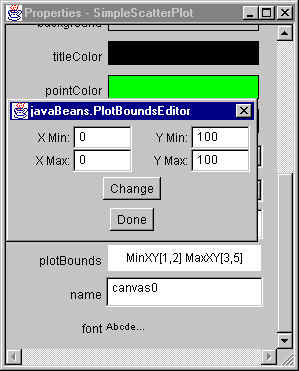
where you can see the results of the paintValue() method in the property
sheet, and also the GUI for the custom PlotBoundsEditor.
Creating a PropertyEditor for an Indexed Property Type
Then there are the SimpleScatterPlot's points, which are
represented by an indexed property, points.
The BeanBox won't show this property for two reasons:
- It is an indexed property, and:
- its type, Point, isn't supported by any of the
built-in property editors.
Clearly, a property editor for the points property isn't going to be
as simple as the previous two property editors. We definitely
have to implement a custom GUI for this property type.
So let's implement a property editor for the points property.
Creating the PointsEditor
Here's the PointsEditor
implementation:
package javaBeans;

import java.awt.Color;
import java.awt.Component;
import java.awt.FontMetrics;
import java.awt.Graphics;
import java.awt.Point;
import java.awt.Rectangle;

import java.beans.PropertyEditorSupport;

/**
*   PointsEditor -- a Java Beans property editor for
*   indexed property type Point[].
*
*   @author Bryan J. Higgs, 10 April, 2000
*/
public class PointsEditor extends PropertyEditorSupport
{
    /**
    *   We're creating a custom GUI for this editor.
    */
    public boolean supportsCustomEditor()
    {
        return true;
    }

    /**
    *   Returns the custom editor GUI panel for this editor.
    */
    public Component getCustomEditor()
    {
        return new PointsEditorPanel(this);
    }

    /**
    *   We're also painting the entry in the property sheet.
    */
    public boolean isPaintable()
    {
        return true;
    }

    /**
    *   This method does the painting of the entry in the sheet.
    */
    public void paintValue(Graphics g, Rectangle box)
    {
        Point[] points = (Point[]) getValue();
        String s = "";
        if (points == null || points.length == 0)
        {
            s = "{empty}";      // If there are no points
        }
        else
        {
            // If there are any points, show up to the first 3
            int count = 3;
            if (points.length < 3)
                count = points.length;
            for (int i = 0; i < count; i++)
            {
                if (i > 0)
                    s += ", ";
                s += "(" + points[i].x + "," +
                           points[i].y + ")";
            }
            if (points.length > 3)
                s += "...";
        }

        g.setColor(Color.white);
        g.fillRect(box.x, box.y, box.width, box.height);
        g.setColor(Color.black);
        FontMetrics fm = g.getFontMetrics();
        int width = fm.stringWidth(s);
        int x = box.x;
        if (width < box.width)
            x += (box.width - width)/2;
        int y = box.y + (box.height - fm.getHeight())/2
                    + fm.getAscent();
        g.drawString(s, x, y);
    }

    /**
    *   We don't have a text representation for this type.
    */
    public String getAsText()
    {
        return null;
    }
} |
It's not too different from the previous editor, except
that the type returned by getValue()
is Point[].
Here is the PointsEditorPanel
class that implements the custom GUI:
package javaBeans;

import java.awt.BorderLayout;
import java.awt.Button;
import java.awt.Label;
import java.awt.Panel;
import java.awt.Point;
import java.awt.event.ActionEvent;
import java.awt.event.ActionListener;

import java.beans.PropertyEditorSupport;

/**
*   PointsEditorPanel -- the custom editor GUI for
*   the PointsEditor property editor.
*
*   @author Bryan J. Higgs, 10 April, 2000
*/
public class PointsEditorPanel extends Panel
{
    /**
    *   Constructor
    */
    public PointsEditorPanel(PropertyEditorSupport ed)
    {
        m_editor = ed;

        setLayout( new BorderLayout() );

        add( createAddPanel(), BorderLayout.NORTH );
        add( m_pointsList, BorderLayout.CENTER );
        add( createRemovePanel(), BorderLayout.SOUTH );

        m_pointsList.setPoints( (Point[])m_editor.getValue() );
    }

    /**
    *   Gets the points currently in the PointsList.
    */
    public Point[] getPoints()
    {
        Point[] pts = m_pointsList.getPoints();
        return pts;
    }

    /**
    *   Creates a panel that allows input of X,Y values for
    *   adding a new point to the array.
    */
    private Panel createAddPanel()
    {
        Panel p = new Panel();
        // Lay out the panel
        p.add( new Label("X: ", Label.RIGHT) );
        p.add( m_x );
        p.add( new Label("Y: ", Label.RIGHT) );
        p.add( m_y );
        p.add( m_addButton );

        // Make the button do the right thing
        m_addButton.addActionListener( new ActionListener()
            {
                public void actionPerformed(ActionEvent ev)
                {
                    addPoint();
                }
            }
        );
        return p;
    }

    /**
    *   Creates a panel that allows the user to remove a point
    *   from that points list.
    */
    private Panel createRemovePanel()
    {
        Panel p = new Panel();
        // Lay out the panel
        p.add( m_removeButton );

        // Make the button do the right thing
        m_removeButton.addActionListener( new ActionListener()
            {
                public void actionPerformed(ActionEvent ev)
                {
                    removePoint();
                }
            }
        );
        return p;
    }

    /**
    *   Adds a point to the points list and then to the editor's bean
    */
    private void addPoint()
    {
        // Construct a point from the specified X,Y values
        Point newPoint = new Point( m_x.getValue(), m_y.getValue() );
        // Add the new point to the points list.
        m_pointsList.add(newPoint);
        // Get the new set of points from the points list
        Point[] points = m_pointsList.getPoints();
        // Use it to replace the points array in the Bean
        m_editor.setValue(points);
    }

    private void removePoint()
    {
        // Get the selected Point index
        int selectedIndex = m_pointsList.getSelectedIndex();
        if (selectedIndex >= 0)
        {
            // Remove the point from the points list
            m_pointsList.remove(selectedIndex);
            // Get the new set of points from the points list
            Point[] points = m_pointsList.getPoints();
            // Use it to replace the points array in the Bean
            m_editor.setValue(points);
        }
    }

    //// Private Data ////
    private PropertyEditorSupport   m_editor;   // Associated editor

    private IntBox      m_x = new IntBox(5);    // Integer textfield
    private IntBox      m_y = new IntBox(5);
    private Button      m_addButton = new Button("Add");
    private Button      m_removeButton = new Button("Remove Selected Point");
    private PointsList  m_pointsList = new PointsList(8); // 8 items visible
} |
The above class uses IntBox,
which we've seen above, and a PointsList
class:
package javaBeans;

import java.awt.List;
import java.awt.Point;

import java.util.Enumeration;
import java.util.Vector;

/**
*   PointsList -- a class that implements a List specifically
*   to contain Points.
*
*   @author Bryan J. Higgs, 10 April, 2000
*/
public class PointsList extends List
{
    /**
    *   Constructs a PointsList with a specified number of
    *   visible items.
    */
    public PointsList(int visibleItems)
    {
        super(visibleItems);
    }

    /**
    *   Gets the Point at the specified inded.
    *   @exception ArrayIndexOutOfBoundsException when the index
    *              is out of range.
    */
    public Point getPoint(int index)
    {
        Point p = (Point) m_points.elementAt(index);
        return p;
    }

    /**
    *   Gets the point that was selected, if any.
    */
    public Point getSelectedPoint()
    {
        Point ret = null;
        try
        {
            int index = getSelectedIndex();
            if (index != -1)
                ret = getPoint(index);
        }
        catch(ArrayIndexOutOfBoundsException ex)
        {
        }
        return ret;
    }

    /**
    *   Adds the specified point to the points list.
    */
    public void add(Point p)
    {
        String name = getAsText(p);
        add(name);
        m_points.addElement(p);
    }

    /**
    *   Adds the specified set of points to the points list.
    */
    public void add(Point[] p)
    {
        if (p != null)
        {
            for (int i = 0; i < p.length; i++)
            {
                add(p[i]);
            }
        }
    }

    /**
    *   Gets the current set of points in the list.
    */
    public Point[] getPoints()
    {
        Point[] pts = new Point[getItemCount()];
        Enumeration enum = m_points.elements();
        for (int i = 0; enum.hasMoreElements(); i++)
        {
            pts[i] = (Point) enum.nextElement();
        }
        return pts;
    }

    /**
    *   Replaces the points in the list with the
    *   specified set.
    */
    public void setPoints(Point[] p)
    {
        removeAll();
        add(p);
    }

    /**
    *   Sets the specified point at the i-th entry
    *   in the list.
    */
    public void setPoint(int i, Point p)
    {
        replaceItem( getAsText(p), i );
        m_points.setElementAt(p, i);
    }

    /**
    *   Removes the specified point from the list,
    *   if found.
    */
    public void remove(Point p)
    {
        String name = getAsText(p);
        remove(name);
        m_points.removeElement(p);
    }

    /**
    *   Removes the point at the specified index.
    */
    public void remove(int i)
    {
        super.remove(i);
        m_points.removeElementAt(i);
    }

    /**
    *   Removes the selected point from the list,
    *   if there is a selected point.
    */
    public void removeSelectedPoint()
    {
        try
        {
            int index = getSelectedIndex();
            if (index != -1)
                remove(index);
        }
        catch(ArrayIndexOutOfBoundsException ex)
        {
        }
    }

    /**
    *   Removes all the points from the list
    */
    public void removeAll()
    {
        super.removeAll();
        m_points.removeAllElements();
    }

    /**
    *   Converts a Point into a standard text form
    */
    private static String getAsText(Point p)
    {
        String name = "{null}";
        if (p != null)
        {
            name = "(" + p.x + ", " + p.y + ")";
        }
        return name;
    }

    ///// Private data ////

    /**
    *   The points are actually stored in this Vector.
    *   Their text representation is stored in the List.
    */
    private Vector  m_points = new Vector();
} |
Note: I had
quite a bit of trouble getting this to work, until I
realized two things:
- The Bean's
getPoints() method must return the same instance
of Point[] every time, unless it is replaced by setPoints(Point[] p).
- When the javadoc for PropertyEditor.setValue(Object
obj)
says: "Note that this
object should not be modified by the
PropertyEditor, rather the PropertyEditor should
create a new object to hold any modified
value." it really
means it!
Registering the PointsEditor
In order to cause the BeanBox to make use of this
PointsEditor, we again modify the SimpleScatterPlotBeanInfo
class, to also register the PointsEditor
for the Point[]
type:
package javaBeans;

import java.awt.Point;

import java.beans.BeanDescriptor;
import java.beans.PropertyEditorManager;
import java.beans.SimpleBeanInfo;

/**
*   BeanInfo class for SimpleScatterPlot.
*
*   @author Bryan J. Higgs, 10 April, 2000
*/
public class SimpleScatterPlotBeanInfo extends SimpleBeanInfo
{
    /**
    *   Gets the BeanDescriptor for the SimpleScatterPlot Bean.
    */
    public BeanDescriptor getBeanDescriptor()
    {
        // Register some property editors
        PropertyEditorManager.registerEditor(PlotType.class,
                                             PlotTypeEditor.class);

        PropertyEditorManager.registerEditor(PlotBounds.class,
                                             PlotBoundsEditor.class);

        PropertyEditorManager.registerEditor(Point[].class,
                                             PointsEditor.class);


        // Create bean descriptor
        BeanDescriptor desc = new BeanDescriptor(SimpleScatterPlot.class);
        desc.setShortDescription("Simple Scatter Plot");
        desc.setDisplayName("SimpleScatterPlot");

        return desc;
    }
} |
(Note how the type is specified!)
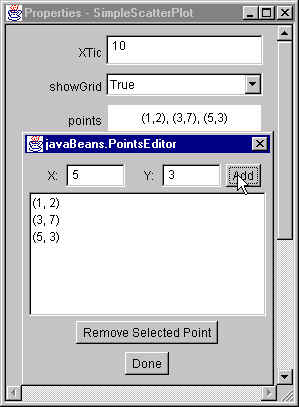
The Results
Once we've yet again redeployed the SimpleScatterPlot
Bean, together with all these classes, here's what the
BeanBox shows us:
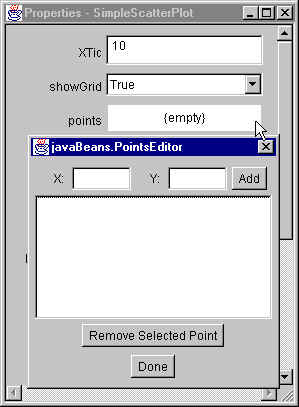
Note that the property sheet entry starts out with
{empty}, and then as you add points, it changes:
If you selected one of the points in the list, and then
click on Remove Selected Point, it would result in the point
being removed from both the list and from the
SimpleScattePlot bean.
|